Docs · Guide
Add the demo button to your site.
Copy one script tag from your portal and paste it before the closing body tag on your site. It adds a Get a live demo button that opens your demo over the page. It works on your own domains and on other websites you list. You can also use your own button, or share the link.
Copy your snippet
- 1Sign in to your portal and find Put it on your site. It appears once you go live.
- 2Press Copy snippet. Your snippet has your own link name in data-demo.
<script src="https://app.demopage.io/embed.js" data-demo="your-link" async></script>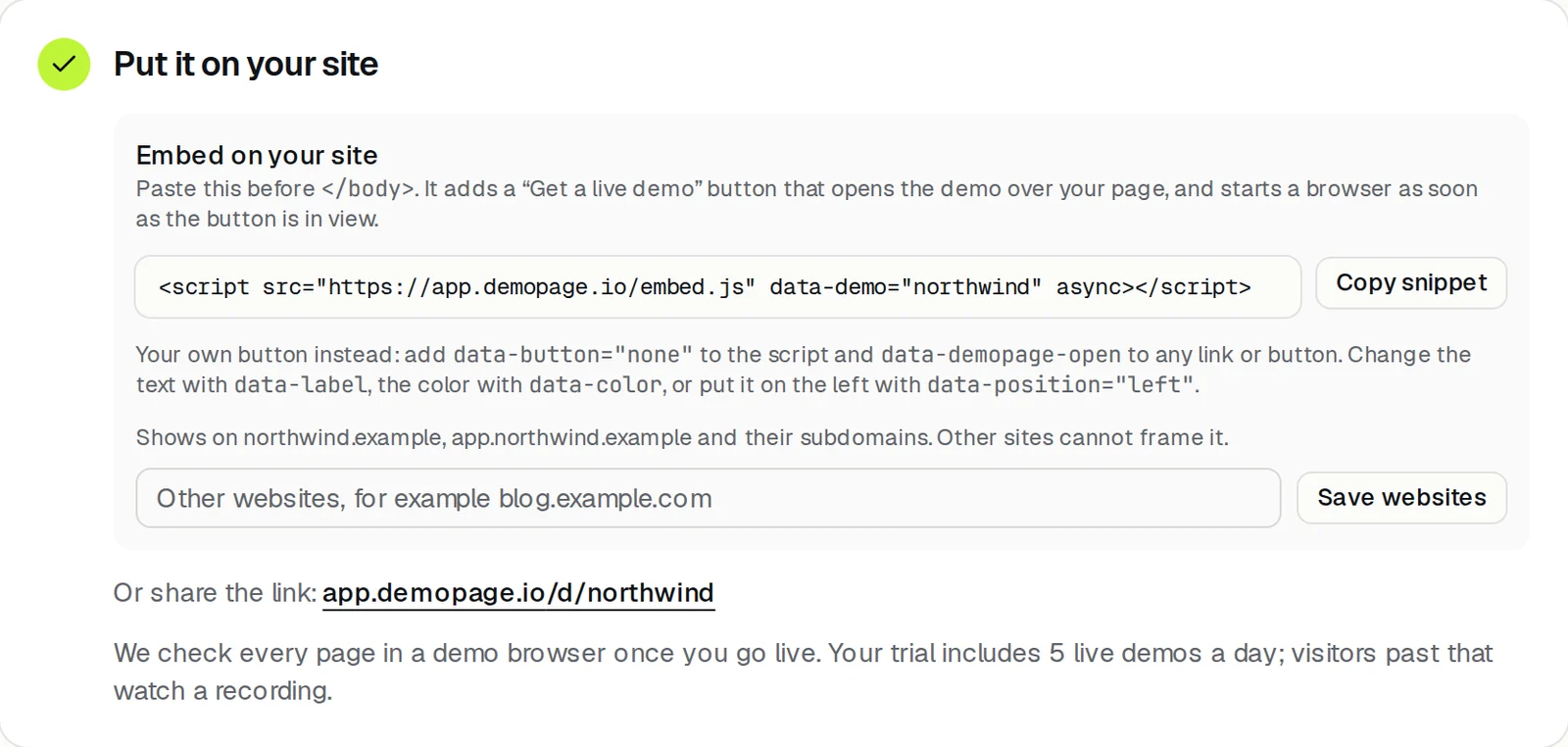
Paste it into your site
Put the snippet just before </body>, on every page that should show the button. Most site builders have one field for code that goes on every page.
- Webflow: Site settings, then Custom code, then Footer code. Paste it, press Save changes, and publish the site. Custom code doesn't run in the Designer or in preview.
- WordPress: with a plugin that adds code to every page, such as WPCode, open Code Snippets, then Header & Footer, and paste it under Footer. Or add it to your theme's footer.
- HubSpot: Settings (the gear), then Content, then Pages. Choose your domain, or Default settings for all domains, paste it into Site footer HTML, and press Save.
- Your own code: paste it before </body> in your page template or layout.
Where the button works
- On your website's domain and its subdomains. Other sites can't frame your demo.
- To show it on another site, such as a blog on a different domain or a webflow.io staging site, add that site under Other websites and press Save websites.
Languages
Live demos, chat, and answers work in 17 languages, each with its own voice: English, Spanish, French, German, Italian, Portuguese, Russian, Chinese, Japanese, Korean, Hindi, Bengali, Gujarati, Kannada, Punjabi, Telugu, Urdu.
The demo starts in the visitor's browser language, and they can switch from the Language menu at the top. To choose one for them, add data-language to the script, or ?lang= to your link, like app.demopage.io/d/your-link?lang=de. Recordings keep the language they were made in.
Or share the link
Every demo also has its own page: app.demopage.io/d/your-link. Use it in emails, ads, and posts, where you can't add a script.
Check that it works
- 1Open your site in a private window and press the button. The demo opens over the page.
- 2In your portal, Results counts Saw the button and Opened the demo.
The trial runs 5 live demos a day. After that, visitors watch the recording.
More guides
- Set up DemoPageFrom sign-up to a live demo on your site: pages, embed, leads, and signed-in screens.
- Choose pages, and who gets a live demoKeep the pages the demo may show, and decide whose live demo waits for you.
- Show your product, signed inGive the guide a sandbox login so it can learn the product, then pick the pages a customer may see.
- Get lead alerts in SlackPost who watched your demo, what they asked, and a recap link into a Slack channel.
- Connect your CRMRecord a demo for each new lead from HubSpot or Zapier.
- Read your demo resultsWhat each number means, the questions buyers asked, and your latest leads.
- Build your demo from your codeConnect Cursor, Claude Code, Codex, or ChatGPT to map your screens from code.