Docs
Put a live demo on your site.
Sign up with your work email and confirm it, and DemoPage reads your website. Keep the pages the demo may show and go live. Then add one script tag to your site or share your link, choose where leads go, and, if you like, give the demo a login so visitors see your product signed in.
Step 1
Create your account
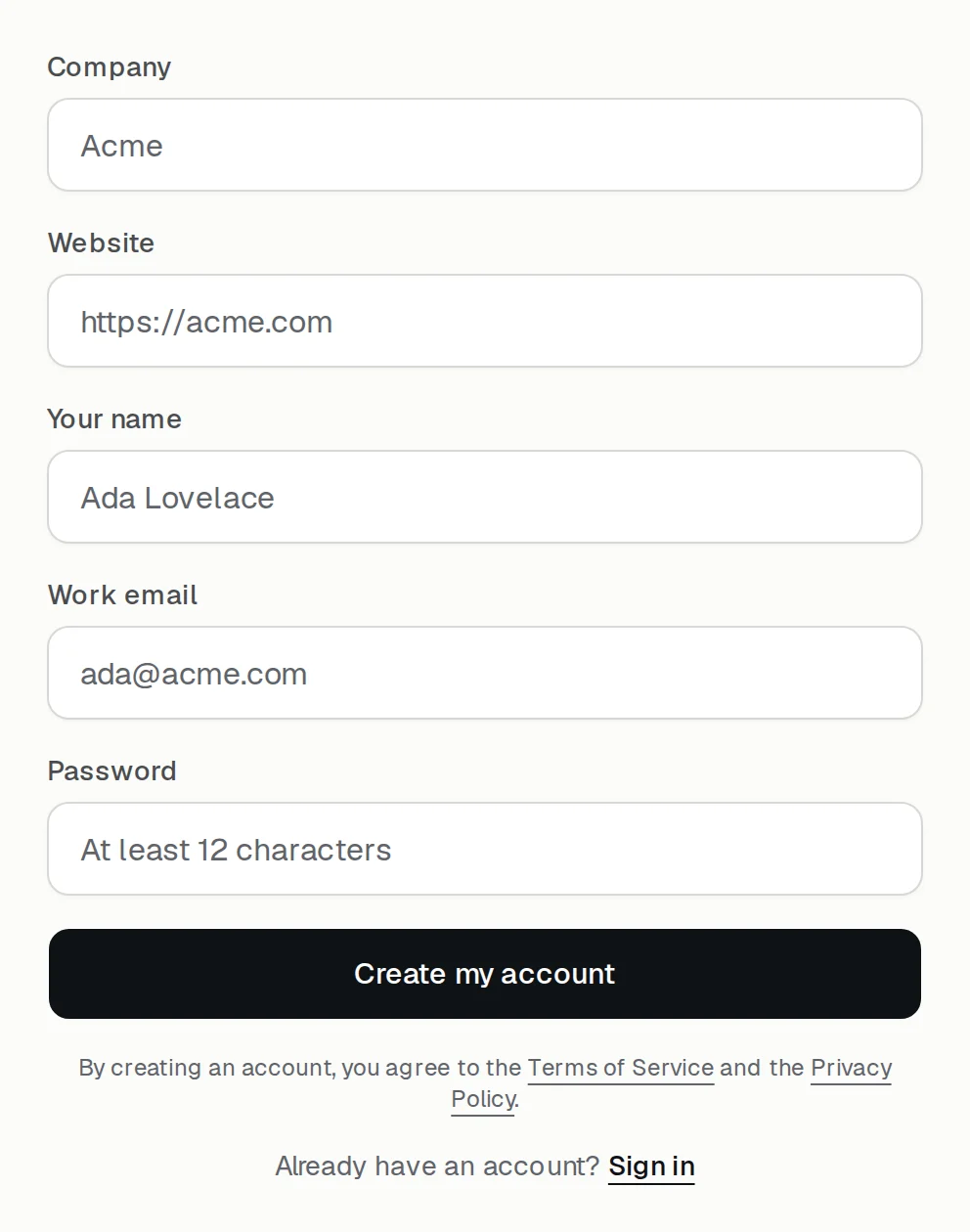
Sign up with your company, your website (starting with https), your name, your work email, and a password of at least 12 characters. The free trial needs no card.
Use your work email, on your website's domain, like you@yourcompany.com for yourcompany.com. Personal and temporary email addresses can't sign up, and the domain has to receive email. Each account has one website.
Step 2
Confirm your email
We email you a confirmation link that works for 7 days. Nothing runs until you open it: then we read your site and the portal opens up. If the email doesn't arrive, send it again from the portal.
If your email isn't on your website's domain, we also check that you run the site before your demo link turns on, usually within a day.
Step 3
We read your site
DemoPage reads your website and the pages it links to, which takes up to a minute, and lists the pages the demo can show and cite.
If it finds none, the portal says why. Fix the page, or press Read my site again; you can do that 6 times a day.
Step 4
Choose what the demo may show
Keep the pages the guide may open and quote. The rest stay held, and anything that would save, send, or pay stays blocked either way.
A group of similar pages, such as your integrations, is one row; the demo opens one of them when a visitor names it. Keep at least one page of its own, like your home or pricing page, then press Go live. To change your pages after that, write to us.
Or start from a presentation: upload a PowerPoint or a Pages file, or paste a Google Slides or Google Docs link that anyone with the link can view. A presentation can go live on its own.
The portal keeps one next step at the top. After you go live, Home shows leads that need attention, the demo's headline results, and the next thing to do. Pick the language the guide starts in, hear it, then open the demo.
Step 5
Put it on your site
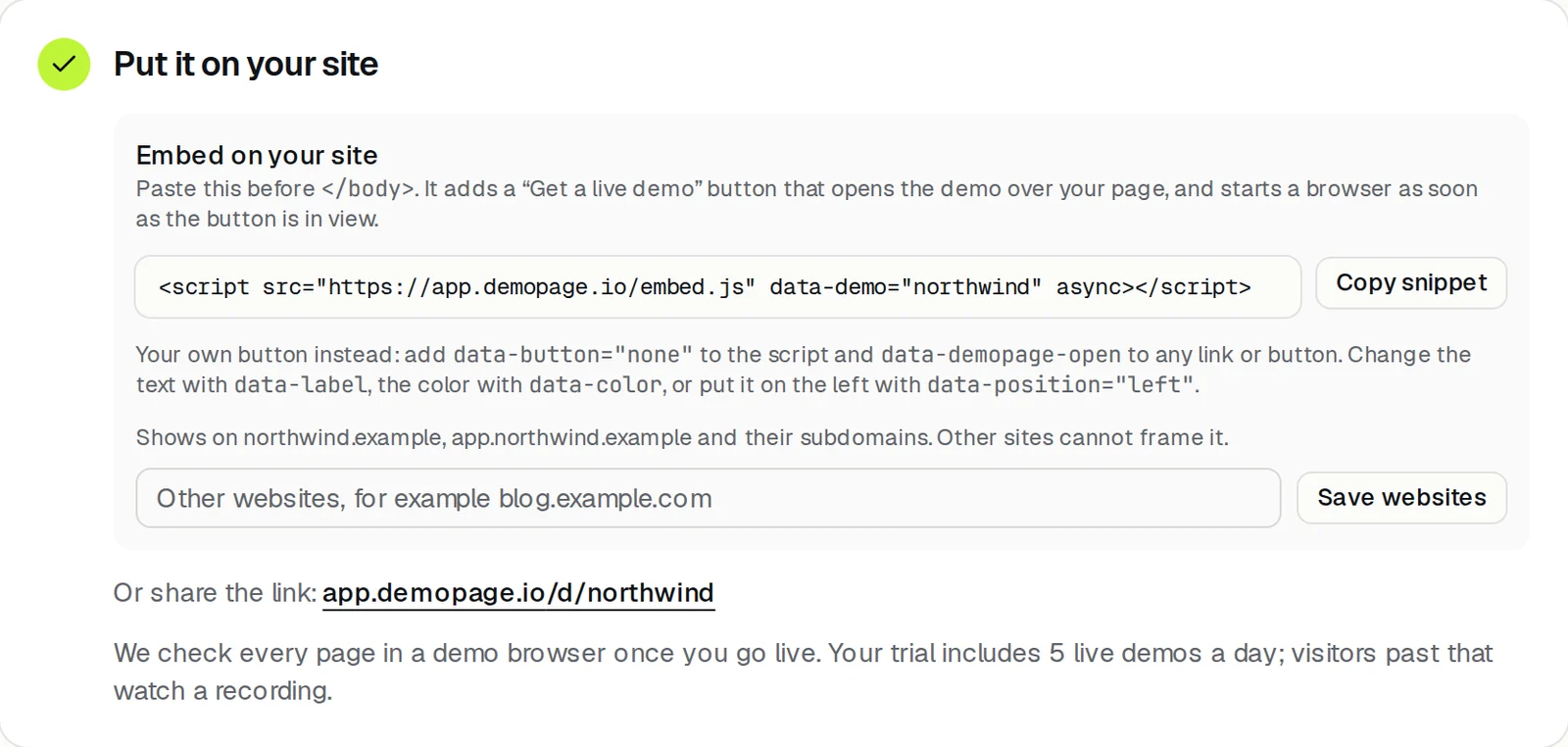
Add one script tag to your site. It puts a button on the page that opens your demo over it.
<script src="https://app.demopage.io/embed.js" data-demo="your-link" async></script>- To use your own button, add data-button="none" to the script and data-demopage-open to any link or button.
- Change the button's text with data-label, its color with data-color, or put it on the left with data-position="left".
- The demo opens only on your website's domains; add any other site that may show it in the portal.
- Or share the link itself: app.demopage.io/d/your-link.
Step 6
Where leads go
Once you're live, choose who hears about new leads and who may join a live demo.
- Team inboxes (your sign-up email to start), a Slack channel, and the booking link the demo offers. The Slack guide below shows how to connect a channel.
- Who may join live: everyone right away; work emails right away while personal emails wait for you; or you approve each request. You can also list domains to approve or hold.
- Demos before the first call: a key your CRM or form can use to have DemoPage record a demo for a new lead, and, if you allow it, email it to them.
Step 7
Show your product, signed in
The public website only covers public pages. To train the guide on the product, sign into a sandbox or give us a sandbox login. Either create a DemoPage login, an address at agents.demopage.io that you invite into your product, or save a sandbox login you already have. A saved login is stored encrypted and never shown in full. Use a sandbox or trial workspace, not a real customer account.
Then enter your sign-in page and press Sign in and find my pages. We sign in once with every write blocked and walk the menus. That is how the guide learns the product. Tick the pages a customer may see; each is checked, signed in, before a demo uses it. You can do this 4 times a day.

Step 8
Build your demo from your code (optional)
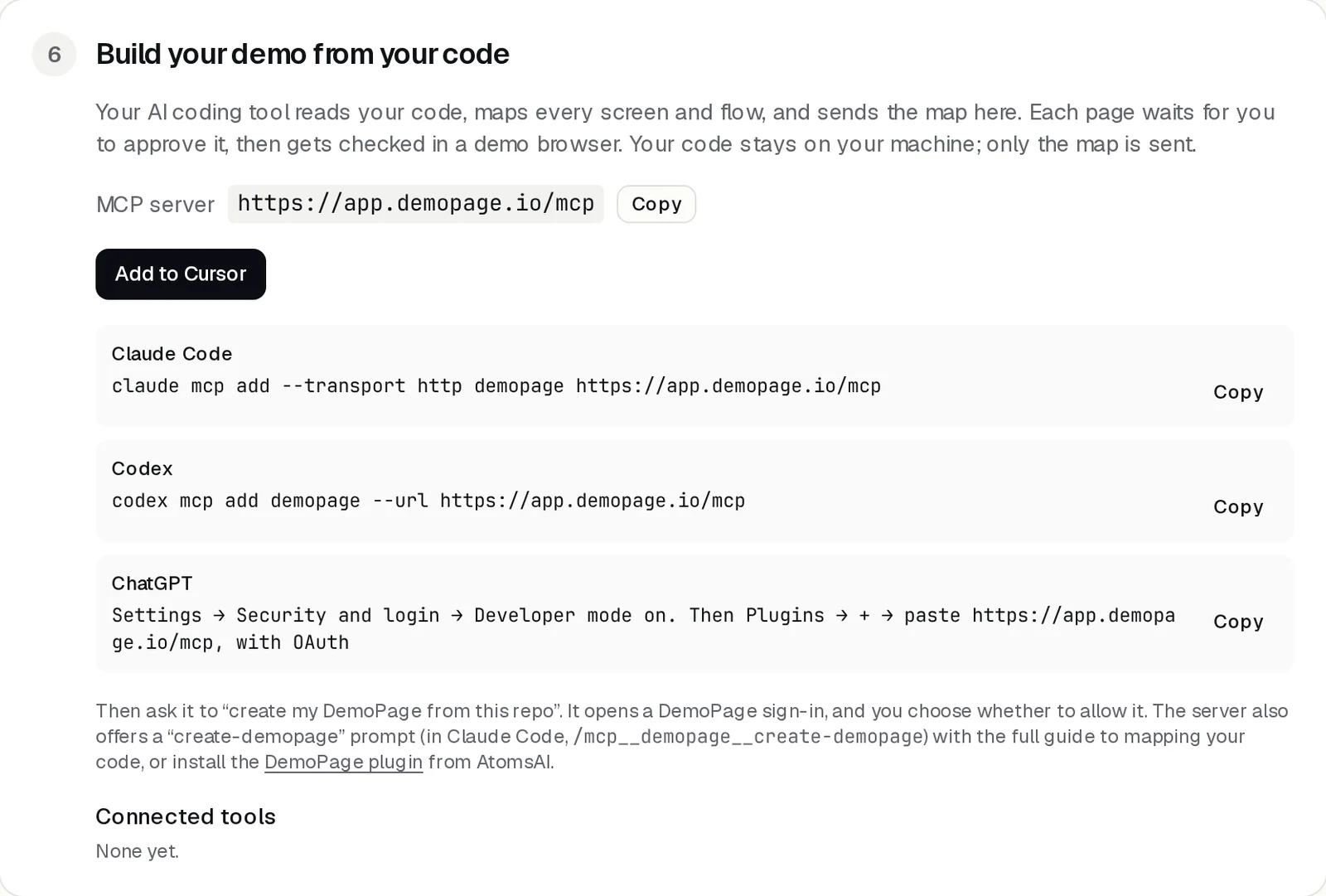
Connect Cursor, Claude Code, Codex, or ChatGPT with Sign in with DemoPage. Your coding tool maps your product's screens from its code and sends them as candidates, and you choose which ones go live. No source code, secrets, or customer data are sent.
Trial limits
- The trial runs 5 live walkthroughs a day. Visitors past that watch the recording, and recordings and chat don't count toward the limit. Paid plans on the pricing page include a monthly number of live demo credits; this daily cap is what a new account gets until we move you to a plan.
- Your site can be read 6 times a day, and your signed-in pages mapped 4 times a day.
- To raise a limit, add a website, or change pages after going live, talk to us.
What the demo browser can and can't do is on the security page. For AI agents and developers: the open API and agents guide.
More guides
- Add the demo button to your sitePaste one script tag on any site builder, or use your own button.
- Choose pages, and who gets a live demoKeep the pages the demo may show, and decide whose live demo waits for you.
- Show your product, signed inGive the guide a sandbox login so it can learn the product, then pick the pages a customer may see.
- Get lead alerts in SlackPost who watched your demo, what they asked, and a recap link into a Slack channel.
- Connect your CRMRecord a demo for each new lead from HubSpot or Zapier.
- Read your demo resultsWhat each number means, the questions buyers asked, and your latest leads.
- Build your demo from your codeConnect Cursor, Claude Code, Codex, or ChatGPT to map your screens from code.