Docs · Guide
Connect your CRM.
Turn on Demo before the first call, and your CRM or a Zap can send each new lead to DemoPage. DemoPage records a walkthrough made for that lead, and your team gets the demo and the lead's card before the first call. Leads from your demo reach your team by email and Slack.
Turn on Demo before the first call
- 1In your portal, under Where leads go, find Demo before the first call and press Turn on.
- 2Copy your intake key right away. It's shown only once. If you lose it, press New key; the old key stops working.
- 3Copy the Send leads to address.
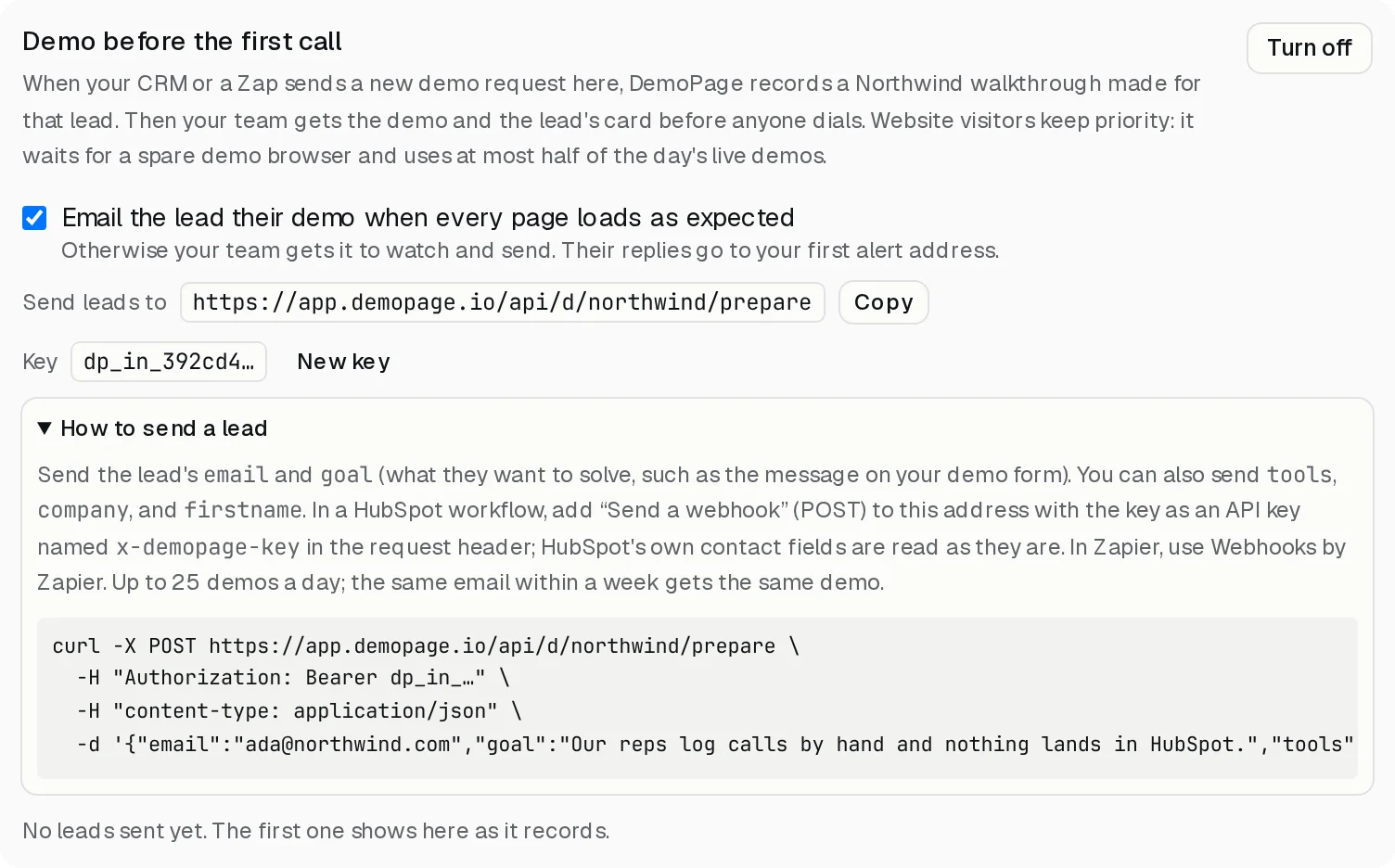
What to send
- email: the lead's work email. Required.
- goal: what they want to solve, such as the message from your demo form. Required.
- tools, company, and firstname, if you have them.
curl -X POST https://app.demopage.io/api/d/your-link/prepare \
  -H "Authorization: Bearer YOUR_INTAKE_KEY" \
  -H "content-type: application/json" \
  -d '{"email":"ada@example.com","goal":"Our reps log calls by hand.","tools":"HubSpot"}'
From a HubSpot workflow
- 1In a contact workflow, add the action Send a webhook, with the method POST.
- 2Paste your Send leads to address as the webhook URL.
- 3For authentication, add your key as an API key named x-demopage-key, sent in the request header.
- 4HubSpot's contact fields are read as they are, so there's nothing to map.
From Zapier
- 1Add the action Webhooks by Zapier, and choose POST.
- 2Paste your Send leads to address as the URL, and send the data as JSON.
- 3Map the lead's email and goal, and any of tools, company, and firstname.
- 4Add a header named Authorization with the value Bearer, a space, and your key.
What happens next
- DemoPage records a walkthrough of your product made for that lead. Website visitors come first: it waits for a spare demo browser and uses at most half of the day's live demos.
- Your team gets the demo and the lead's card by email and Slack.
- With Email the lead their demo ticked, the lead gets it when every page loads as expected. Otherwise your team gets it to watch and send.
- When the lead opens their demo, your team gets an alert.
- Up to 25 demos a day. The same email within a week gets the same demo.
Getting demo leads into your CRM
Leads from your demo go to your alert emails and Slack channel. DemoPage can also post each lead and finished demo to a webhook, for Zapier, Make, or your own endpoint. For now the DemoPage team turns that on for you, so talk to us.
More guides
- Set up DemoPageFrom sign-up to a live demo on your site: pages, embed, leads, and signed-in screens.
- Add the demo button to your sitePaste one script tag on any site builder, or use your own button.
- Choose pages, and who gets a live demoKeep the pages the demo may show, and decide whose live demo waits for you.
- Show your product, signed inGive the guide a sandbox login so it can learn the product, then pick the pages a customer may see.
- Get lead alerts in SlackPost who watched your demo, what they asked, and a recap link into a Slack channel.
- Read your demo resultsWhat each number means, the questions buyers asked, and your latest leads.
- Build your demo from your codeConnect Cursor, Claude Code, Codex, or ChatGPT to map your screens from code.