Docs · Guide
Build your demo from your code.
Connect your AI coding tool to DemoPage. It reads your code on your machine, maps your product's screens and flows, and sends the map. Each page waits for you to approve it, then gets checked in a demo browser. Your source code, secrets, and customer data are not sent.
Connect your tool
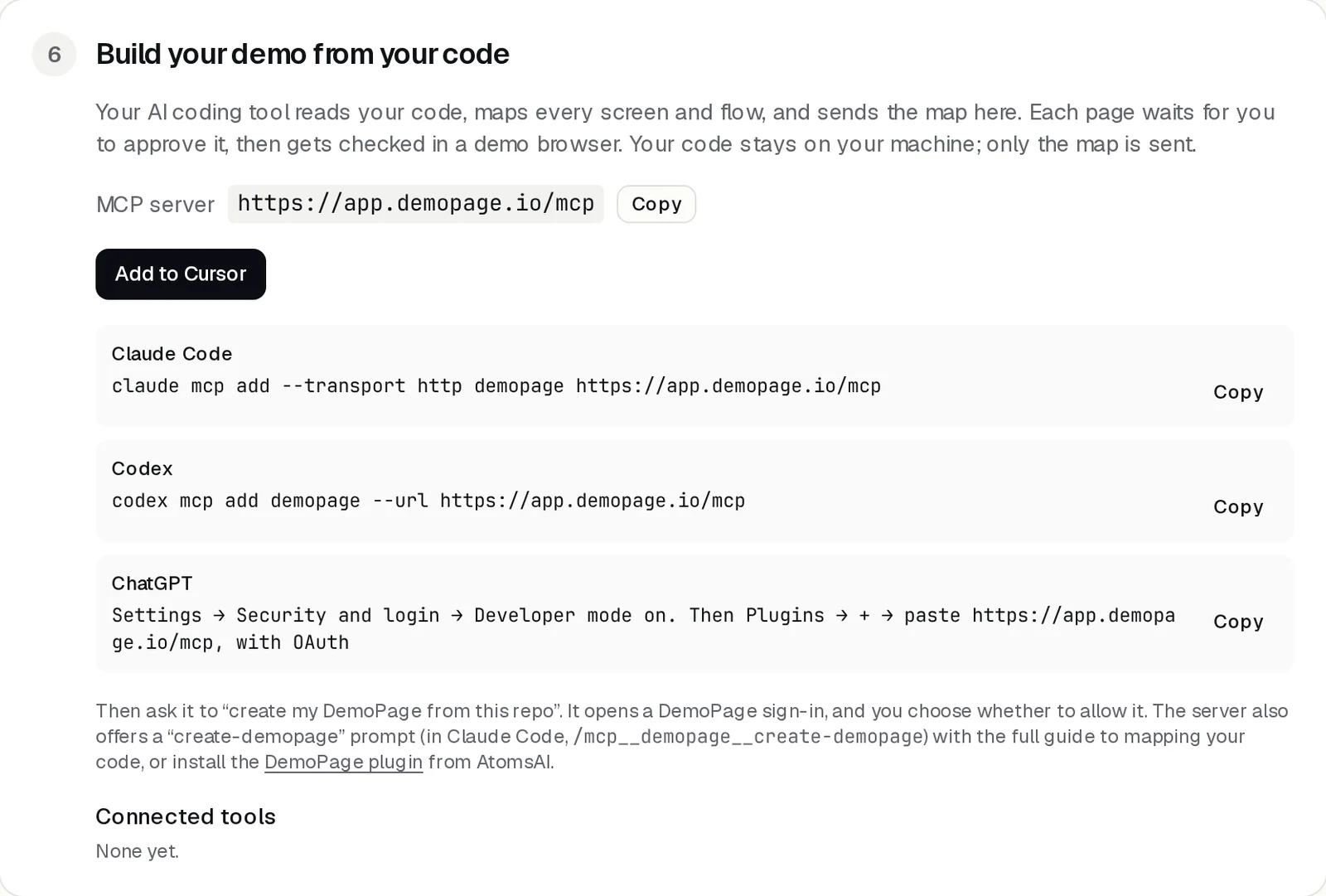
In your portal, open Build your demo from your code. The DemoPage server is https://app.demopage.io/mcp.
- Cursor: press Add to Cursor.
- Claude Code: run claude mcp add --transport http demopage https://app.demopage.io/mcp
- Codex: run codex mcp add demopage --url https://app.demopage.io/mcp
- ChatGPT: in Settings, then Security and login, turn Developer mode on. Then under Plugins, press +, paste the server address, and choose OAuth.
Sign in and allow it
- 1Ask your tool to create your DemoPage from this repo.
- 2It opens a DemoPage sign-in. Sign in with your DemoPage account.
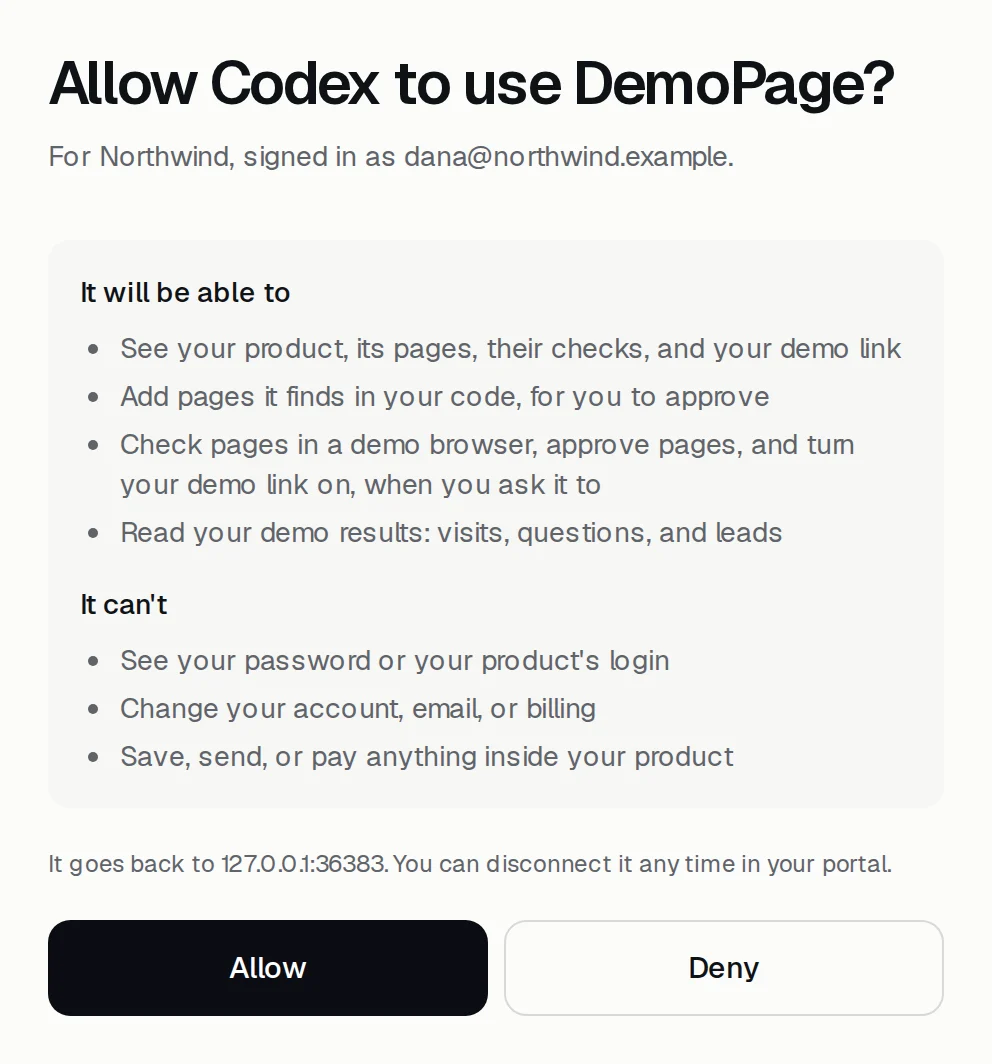
- 3Read what it will be able to do and what it can't, then press Allow.
Approve what it finds
- Pages your tool sends arrive held. None goes into a demo until you approve it.
- Ask the tool to list them and approve the ones you want. It approves only when you ask.
- Approved pages are checked in a demo browser. Any that don't load stay out.
The guided prompt and the plugin
- The DemoPage server offers a create-demopage prompt with the full guide to mapping your code. In Claude Code, it's /mcp__demopage__create-demopage.
- Or install the DemoPage plugin from github.com/gaufire/demopage-plugins.
Disconnect a tool
Your portal lists connected tools and when each was last used. Press Disconnect to end one. Changing your password ends every connection.
More guides
- Set up DemoPageFrom sign-up to a live demo on your site: pages, embed, leads, and signed-in screens.
- Add the demo button to your sitePaste one script tag on any site builder, or use your own button.
- Choose pages, and who gets a live demoKeep the pages the demo may show, and decide whose live demo waits for you.
- Show your product, signed inGive the guide a sandbox login so it can learn the product, then pick the pages a customer may see.
- Get lead alerts in SlackPost who watched your demo, what they asked, and a recap link into a Slack channel.
- Connect your CRMRecord a demo for each new lead from HubSpot or Zapier.
- Read your demo resultsWhat each number means, the questions buyers asked, and your latest leads.