Short answer
Copy one script tag from Embed on your site in your portal's Demo settings, and paste it before the closing body tag on every page that should show the button. It adds a Get a live demo button that opens your demo over the page.
Add it
- 1Sign in to your portal, open Demo settings, and find Embed on your site. It appears once you go live.
- 2Press Copy snippet. Your snippet has your own link name in data-demo, and data-language if you picked a start language. If copying fails, the portal says Select the snippet and copy it from here.
- 3Paste it before </body> in your page template, or into your site builder's footer code field. A header field works too. Add it once per page; a second copy is ignored.
- 4Open your site in a private window and press the button. The demo opens over the page.
<script src="https://app.demopage.io/embed.js" data-demo="your-link" async></script>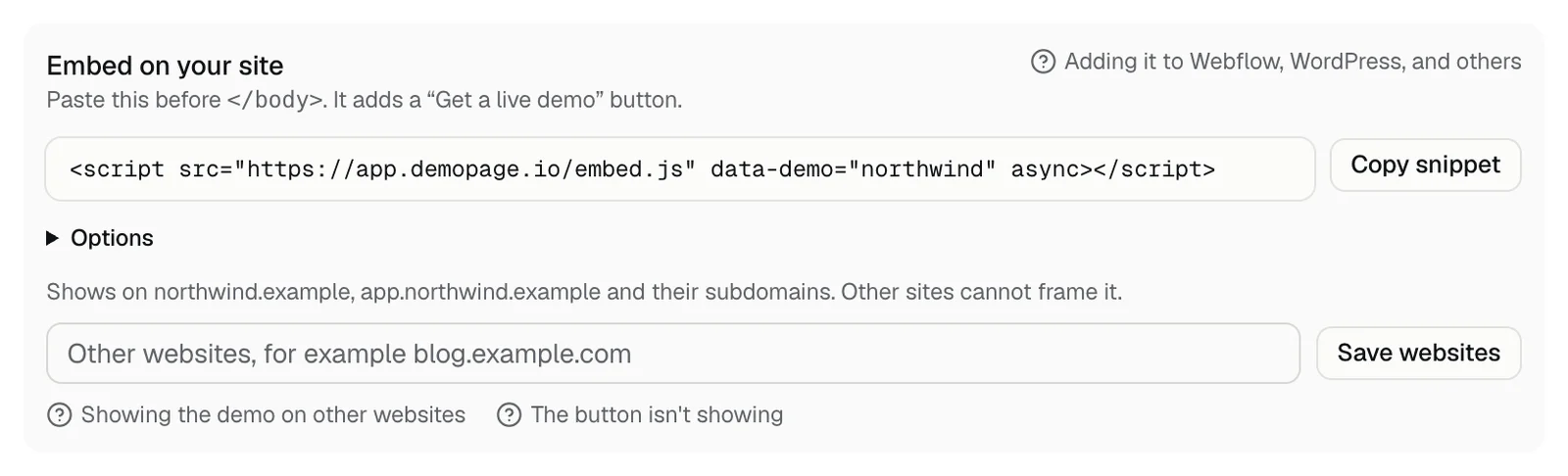
What visitors see
A Get a live demo button in the bottom right corner. It opens the demo in a panel over your page, full screen on phones. Visitors close it with the × button or by clicking outside the panel.
To change the button's text, color, or side, see Button text, color, and position. To use a button of your own, see Use your own button.
Where it works
The demo loads on https pages of your website's domain and its subdomains, and on other websites you list under Embed on your site. On any other page, including a file opened from your computer, the panel opens without the demo. Other domains and staging sites
Step-by-step for common builders
- Webflow: How do I add DemoPage to Webflow?
- WordPress: How do I add DemoPage to WordPress?
- HubSpot CMS: How do I add DemoPage to HubSpot?
- Others: Can I add DemoPage to Wix, Squarespace, Framer, or Shopify?
If something's off
- No button on the page: go through the button checklist.
- The browser console says DemoPage: set data-demo to the name of your demo link. That means data-demo is missing or mistyped; copy the snippet again.
- To check it's working, look at Saw the button in Results. What each number means
No script needed
You can also share the link itself in emails, ads, and posts. Sharing your demo link
Related questions
Didn't answer your question?
Talk to us with your demo link and the email you signed up with, or write to hello@demopage.io. We'll answer, and add it to the Help Center.