Short answer
Check that the snippet is on that page and that you published the site, since many site builders don't run custom code in their editor or preview. If the button appears but its panel stays empty, your demo link isn't on yet, or that website isn't allowed to show the demo. A Content Security Policy or an ad blocker can also stop the script.
If there's no button at all
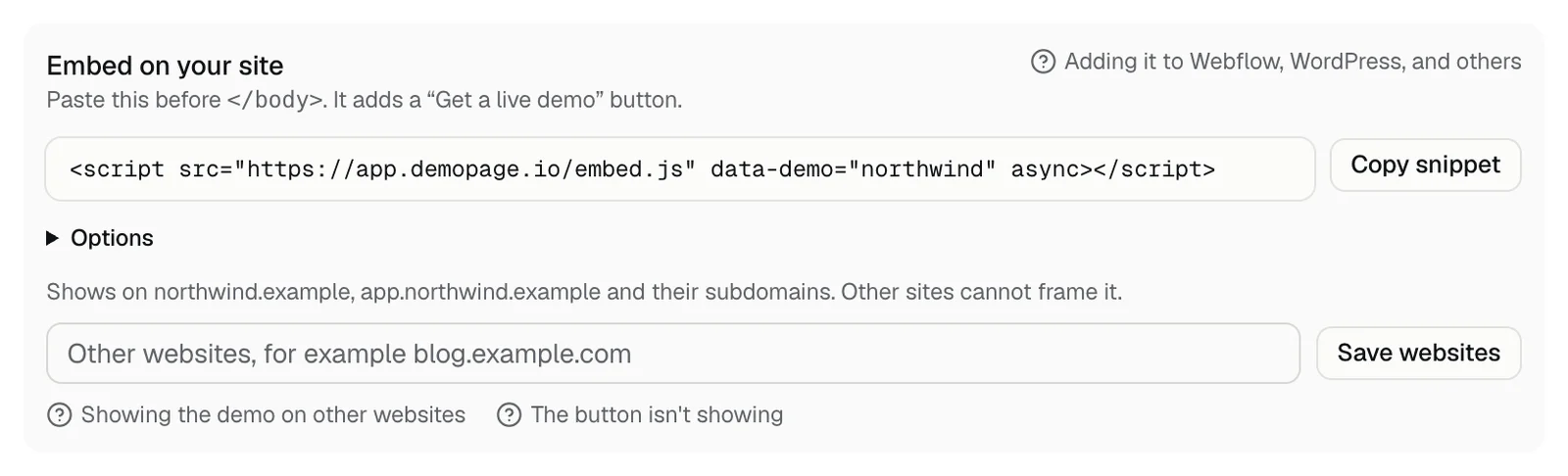
- 1Copy the snippet from Embed on your site in Demo settings, or before you go live, from On your site in the setup steps. Paste it before </body> on every page that should show the button. Before you go live, the button opens an empty panel.
- 2Publish the site, then open the published page, not the editor or a preview. Webflow's Designer and the editors of many other builders don't run custom code. Webflow, WordPress, other site builders
- 3Check data-demo in the snippet. It has to be the name of your demo link, the part after /d/ in Your demo link. If it's missing, your browser's console says DemoPage: set data-demo to the name of your demo link.
- 4If you added data-button="none", the default button is off on purpose, and the demo opens from any link or button with data-demopage-open. Use your own button
- 5If your site sends a Content Security Policy, allow https://app.demopage.io in script-src, frame-src, and connect-src.
- 6Turn off ad blockers and privacy extensions, or open the page in a private window.
- 7Look at the bottom right corner, or the bottom left with data-position="left". A cookie banner or chat widget in the same corner can sit on top of it. Change the button's position
- 8Paste the snippet once per page. A second copy is ignored, so its settings have no effect.
Check it worked
Open your site in a private window, press the button, and start the demo. On the Results tab, Saw the button and Opened the demo go up, and Where the demo was opened lists your site. Saw the button stays at 0 while the script can't run or your link is off. What each number means
Before you share the link, try your demo the way a visitor would.
Related questions
Didn't answer your question?
Talk to us with your demo link and the email you signed up with, or write to hello@demopage.io. We'll answer, and add it to the Help Center.