Short answer
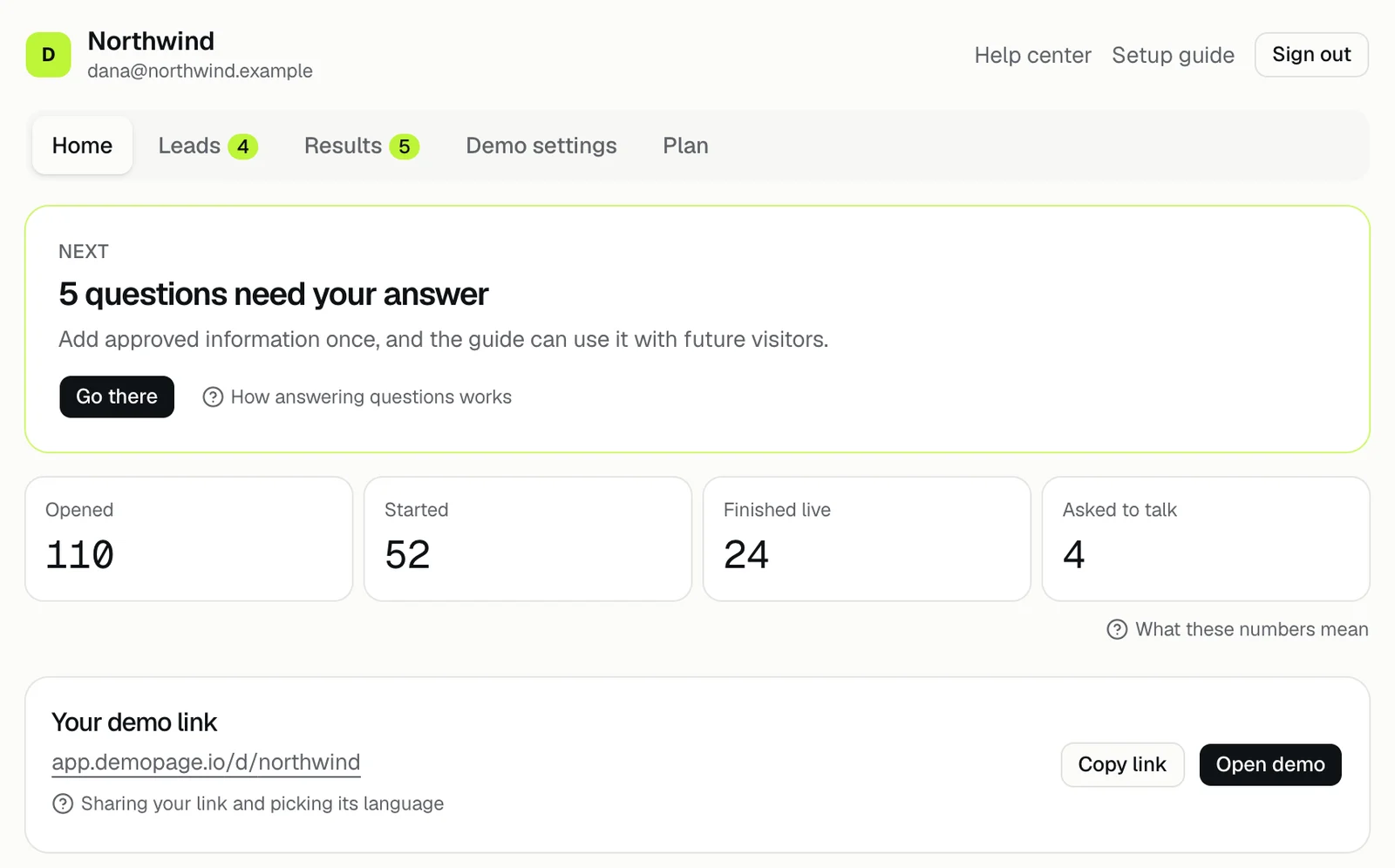
Every demo has its own page on DemoPage, named after your company. Copy the link from Your demo link on the portal's Home tab, and use it anywhere you can't add a script: emails, outbound sequences, ads, social posts, and chat.
Where to find it
Open your portal and stay on Home. Under Your demo link, press Copy link to copy it, or Open demo to try it yourself. The link looks like app.demopage.io/d/your-link. How the link is named
Ways to use it
- A P.S. in outbound email: Not ready for a call? See it live.
- A button in a follow-up or nurture email.
- The link in a paid ad or a social profile.
- A link in your docs or help center.
Pick the language
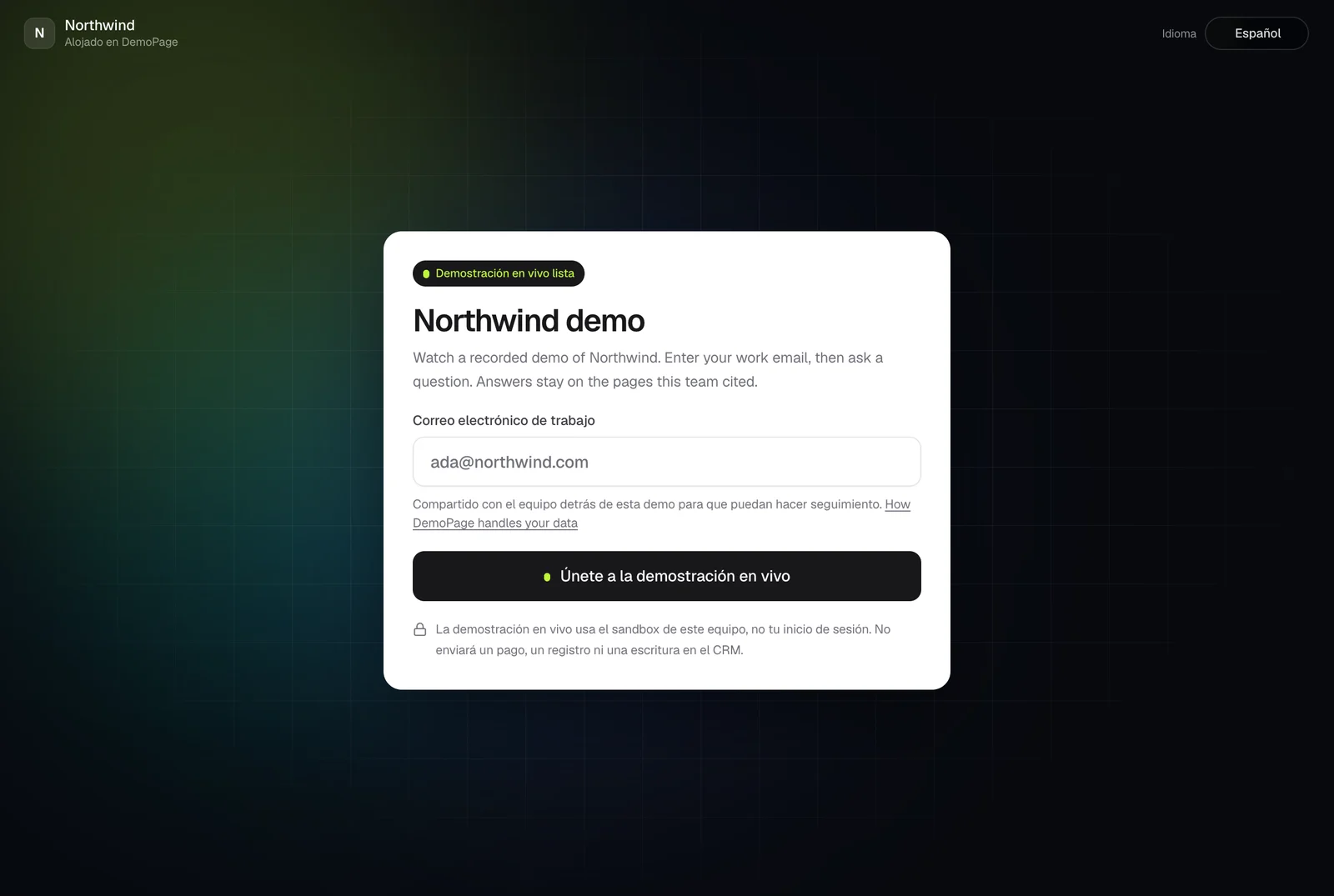
If you picked a start language in Demo settings, Copy link adds it to the link. To set one yourself, add ?lang= and a two-letter code, for example app.demopage.io/d/your-link?lang=de. Visitors can still switch. Choosing the start language
A code that isn't in the language list is ignored. Languages the demo speaks
Good to know
- The demo page is kept out of search results, so share the link where your buyers are.
- Results counts opens of the link under Opened the demo. Where the demo was opened lists only sites that embed the demo, not emails or ads. What each number means
- While we check that you run your site, the link says This demo is not available. Why your demo isn't live yet
Related questions
Didn't answer your question?
Talk to us with your demo link and the email you signed up with, or write to hello@demopage.io. We'll answer, and add it to the Help Center.