Short answer
They give a work email, then watch a recording or join a live walkthrough of your real product, with a chat beside it. They can ask questions in the chat or out loud, and after a live demo they get a recap and one next step. They never need an account.
Step by step
- 1They press the button on your site, or open your demo link. On your site, the demo opens over your page.
- 2They enter a work email, the only field. The form says it's shared with your team so you can follow up, and links to How DemoPage handles your data.
- 3They press Join the live demo or Watch the recording. With live demos off and no recording yet, the button says Join the demo, and Watch the presentation appears when you've added one.
- 4If a request waits for your approval, every live seat is busy, or a limit is reached, they watch the recording meanwhile and the chat says why. See who gets a live demo and the waiting line.
- 5While a live demo opens, a card titled Here's how this will go lists what they'll see and how to ask or take the mouse.
- 6An optional card asks What would you like to see? They can type, tap a page or a tool, or press Skip, and Reply sends it. In some languages they can speak instead; see Can visitors ask questions out loud?
- 7They can ask in the chat at any time, with Try asking suggestions to start. On a phone, the chat opens over the screen.
- 8When a live demo ends, the finish card shows Built for you and What you saw, your next step, a recap link to forward, and Want the team to follow up? After a recording, it offers your button and the same follow-up form.
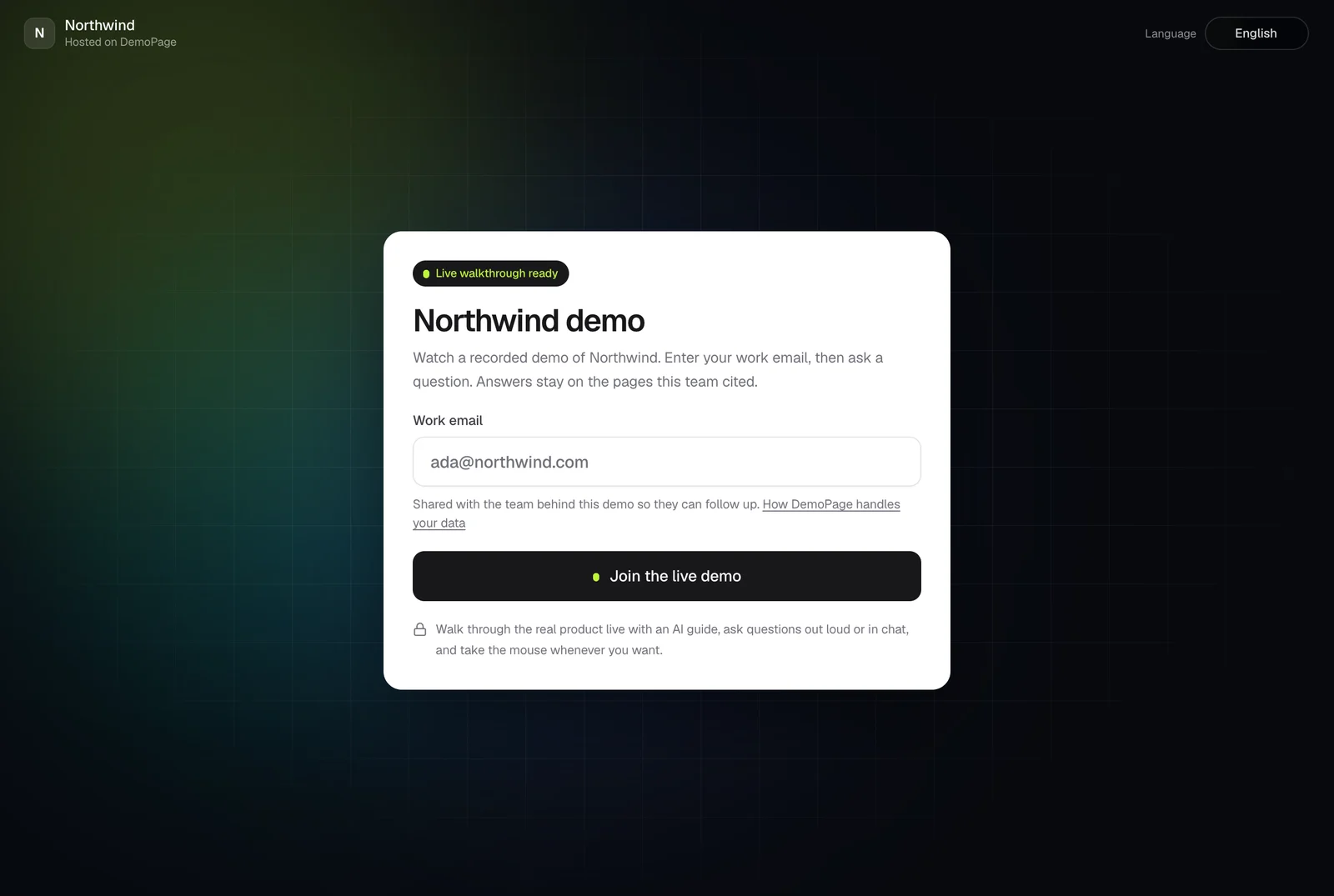
What they're told
- Under the email field: Shared with the team behind this demo so they can follow up.
- Under the buttons: that a live demo walks through the real product with an AI guide and lets them take the mouse, or that a recording plays a finished walkthrough and doesn't sign them in.
- On the screen: a Live or Recording label.
- Under the chat: Answers stay on the pages this team approved.
- While they drive: anything that would save, send, or pay stays read-only.
More
DemoPage's name appears on the page too; see Does the demo show DemoPage branding? For keyboard and screen reader use, see Can visitors use the demo with a keyboard or screen reader?
To go through it yourself before you share it, see How do I try my demo before I share it?
Related questions
Didn't answer your question?
Talk to us with your demo link and the email you signed up with, or write to hello@demopage.io. We'll answer, and add it to the Help Center.