Short answer
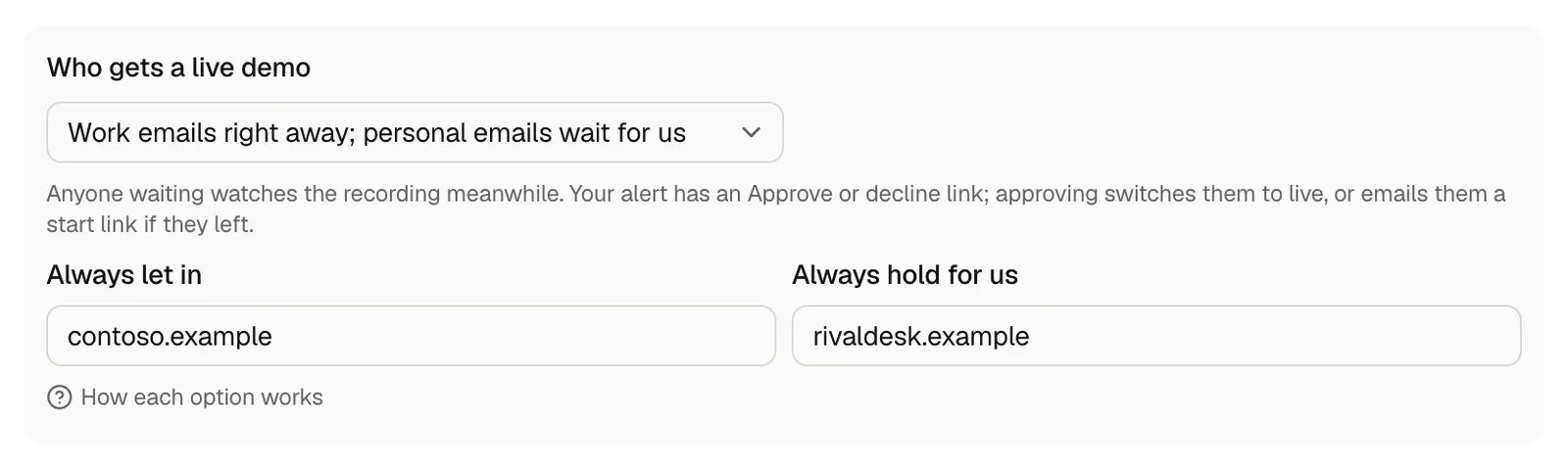
Under Who gets a live demo, let everyone in right away, make personal email addresses wait for your approval, or approve every request yourself. Anyone who waits watches the recording meanwhile. The setting is on the Leads tab, under Where alerts go.
Choose an option
- 1Open the Leads tab, then Where alerts go. The same setting is on the Demo settings tab, under Alerts, booking link, and who gets in.
- 2Under Who gets a live demo, pick one of the three options below.
- 3Press Save. Picking an option changes nothing until you save.
The three options
- Everyone, right away: anyone who sends the demo form goes straight to a live demo. New demo links start with this option.
- Work emails right away; personal emails wait for us: addresses at Gmail, Outlook, Yahoo, iCloud, and other personal email services wait for your approval. Work emails go straight in.
- We approve each request: every live demo waits for you, including your own team's tests, unless the domain is under Always let in.
Always let in, and always hold
- Always let in: domains that never wait, such as a customer you're expanding with, or your own company so your team can test.
- Always hold for us: domains that always wait, such as a competitor.
- Both override the option above. If a domain is in both, Always let in wins.
- A domain covers its subdomains: contoso.com also covers eu.contoso.com. Use the domain in people's email addresses, not www.contoso.com.
- List up to 10 domains in each, separated by commas or spaces, then press Save.
What a waiting visitor sees
They watch the recording right away, with a note such as: The Northwind team confirms live walkthroughs first. We'll switch you over when they approve.
Your team gets an alert with a link to approve or decline. Approving switches a visitor who is still watching to a live demo, and emails one who left a link to start it. See approving a request.
Waiting requests are also listed under Live demo requests on the Leads tab, so you can answer them without the alert.
Limits still apply
- When your live demos for the month or for the day are used up, every visitor gets the recording. See running out of live demos.
- When every live demo seat is busy, a visitor waits in line and watches the recording meanwhile. See the waiting line.
- Live demos come out of your plan's allowance, so holding some requests keeps them for the buyers you care about. See what counts as a live demo.
- How the daily cap works: the daily live demo limit.
Related questions
Didn't answer your question?
Talk to us with your demo link and the email you signed up with, or write to hello@demopage.io. We'll answer, and add it to the Help Center.