Short answer
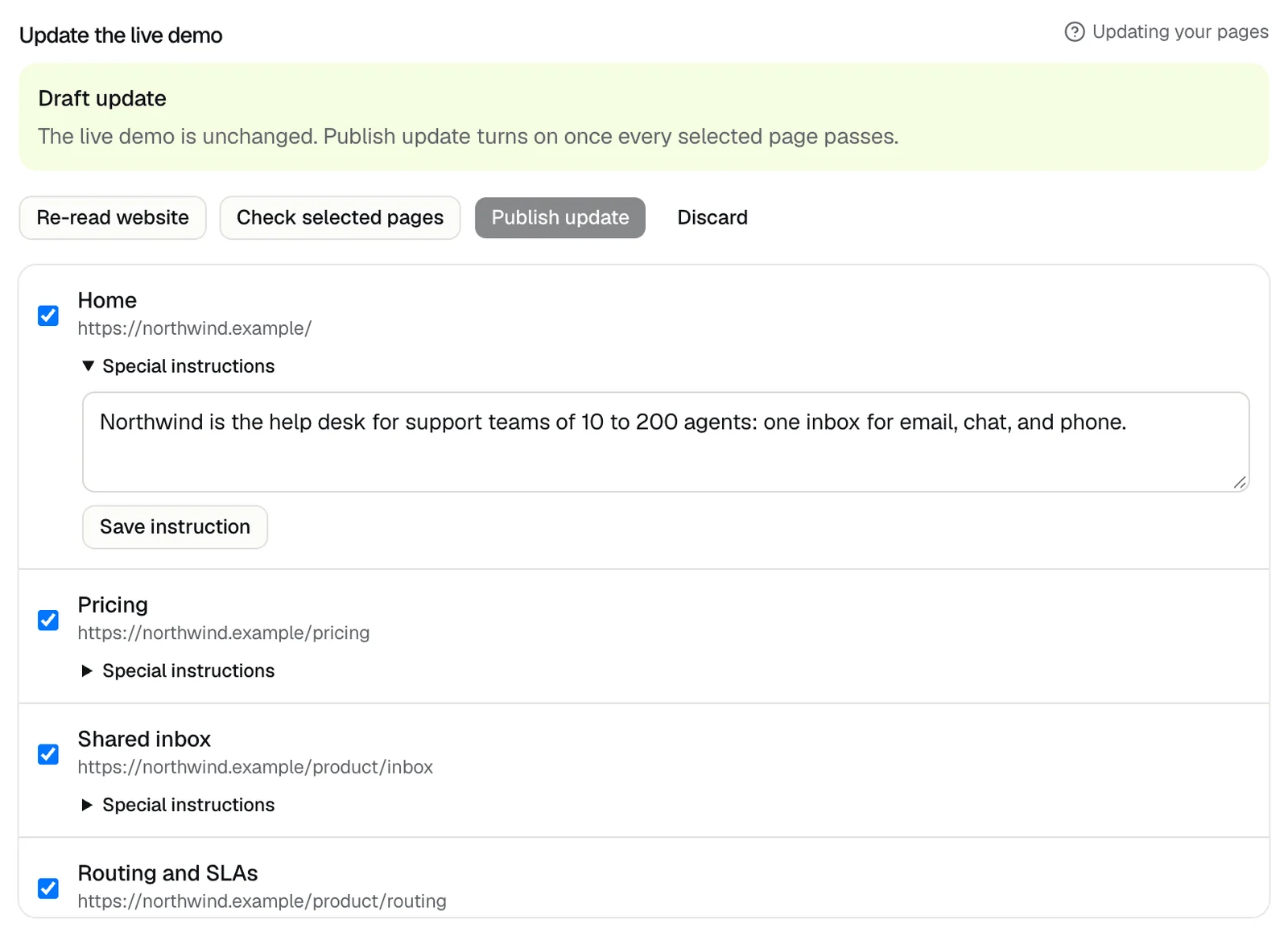
Write a special instruction for the page in a draft update, and the guide follows it when it presents that page. Open Demo settings, press Update live demo, open Special instructions under a ticked page, write what to point out or how to explain it, and press Save instruction. Then press Check selected pages and Publish update.
Steps
- 1Open Demo settings and find Update the live demo.
- 2Press Update live demo. A Draft update opens, and your live demo stays as it is until you publish.
- 3Tick the page if it isn't ticked, then open Special instructions under it.
- 4Write what the guide should point out, what visitors often ask about the page, or how to explain it. Anything past 500 characters is cut off.
- 5Press Save instruction.
- 6Press Check selected pages, then Publish update once every ticked page of your website passes. See How do I change the pages after my demo is live?
Good to know
- Without an instruction, the guide talks about a page from a line of its own text. An instruction replaces that line, so include the facts you want said.
- To go back to the page's own text, clear the box and press Save instruction.
- Instructions stay when you press Re-read website.
- Saving an instruction clears the check, so press Check selected pages again.
- If a re-read dropped the page, saving says "That page is not in this update."
- An instruction changes what the guide says while the page is on screen, not how it answers questions. To shape answers, see How does the demo answer questions?
Related questions
Didn't answer your question?
Talk to us with your demo link and the email you signed up with, or write to hello@demopage.io. We'll answer, and add it to the Help Center.