Short answer
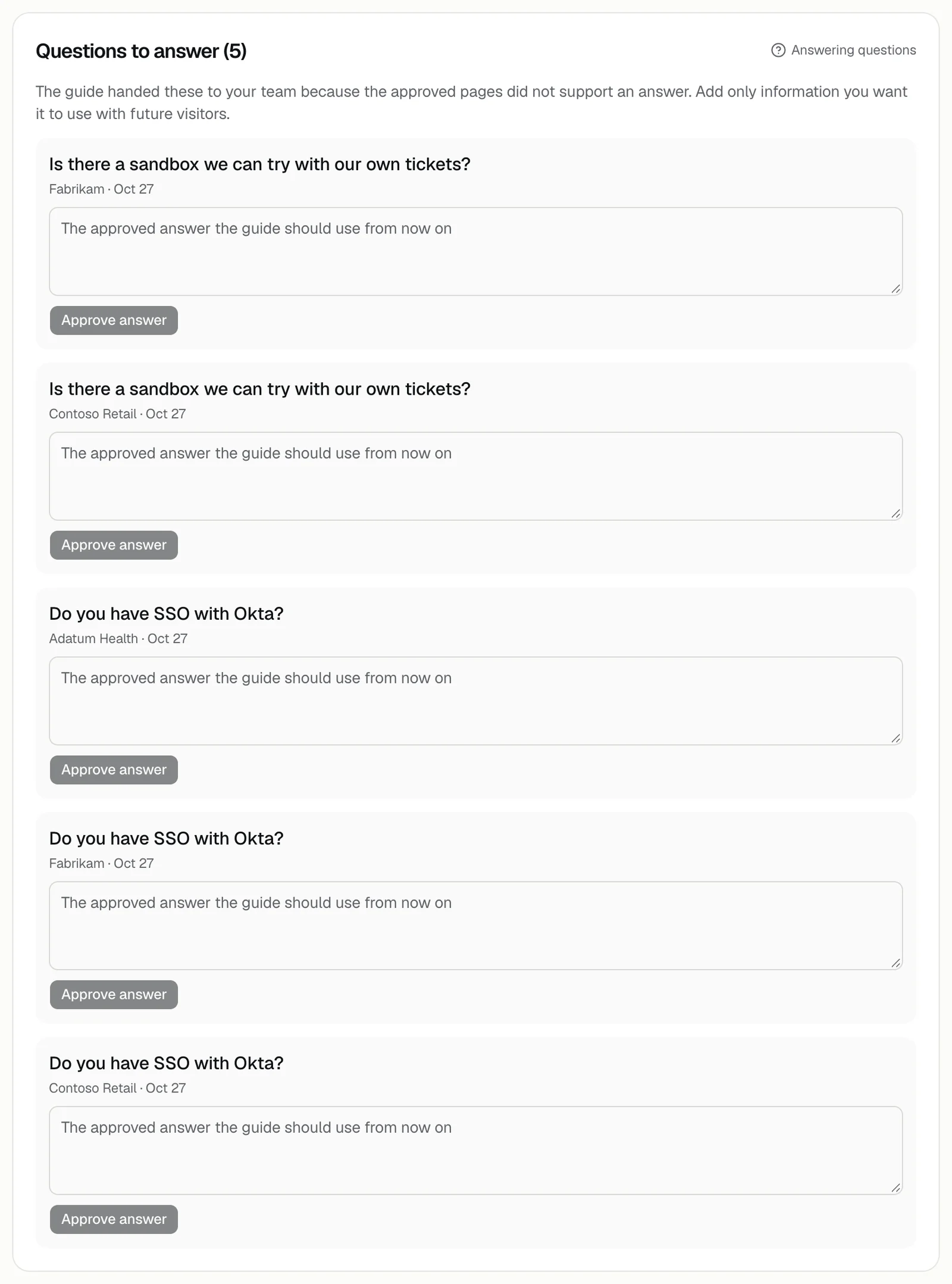
Open the Results tab and find Questions to answer, where the guide puts the questions your approved pages didn't support. Type the answer you want it to use and press Approve answer. The guide can then use that answer with future visitors.
Steps
- 1Open the Results tab. A number beside it counts the questions waiting, and Home shows a Next card such as 3 questions need your answer, with Go there; see What's in my portal after I go live?
- 2Under Questions to answer, read each question, the visitor's company, and the date.
- 3Type the answer the guide should use, between 12 and 700 characters.
- 4Press Approve answer. The question leaves the list.
What happens next
- The guide cites your answer as Team answer when a visitor asks something similar.
- A team answer lets the guide speak to topics it otherwise hands over, such as security or the roadmap, so approve only what you'd put in writing.
- Price questions still go to your team; see Will the guide tell visitors my prices?
- The guide keeps your 60 newest answers.
Good to know
- The list shows the 20 newest questions. The same question asked twice shows twice, and approving one clears that one alone.
- The section appears only while something is waiting.
- The demo keeps its 60 most recent questions of any kind, so an old question can drop off before you answer it.
- Add only information you want the guide to use with future visitors. If the answer belongs on your website, add it to a page and update your demo instead; see How do I change the pages after my demo is live?
Related questions
Didn't answer your question?
Talk to us with your demo link and the email you signed up with, or write to hello@demopage.io. We'll answer, and add it to the Help Center.