Short answer
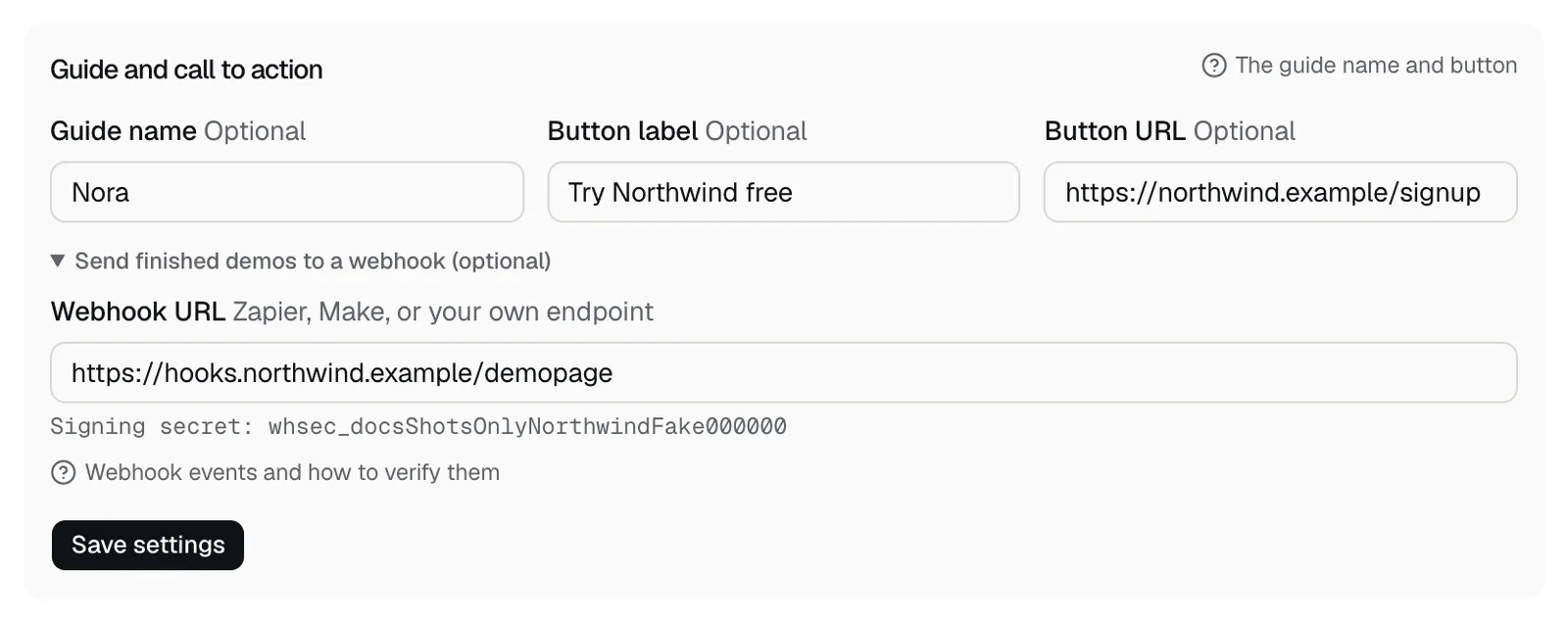
Open Demo settings and find Guide and call to action. Set a Guide name, a Button label such as Start free trial, and a Button URL, then press Save settings. The button appears at the top of the chat, on the card at the end of the demo, and on the recap page.
Fields
- Guide name: optional, up to 40 characters, such as Maya. The guide greets visitors with "Hi, I'm Maya, the AI guide for Northwind." and the chat shows the name with an AI guide tag. Without a name, the chat shows your product's name and the greeting says the walkthrough was made for them.
- Use a plain name. Anything else gets "Use a plain name for the guide, like Maya."
- Button label: optional, up to 60 characters, such as Start free trial.
- Button URL: optional, an https link with no username or password in it. A button needs both fields; one without the other gets "A call to action needs both a label and an https link."
How the next step is chosen
- After a live demo, the finish card offers your button as the next step.
- If the visitor sounds ready to talk and you've added a booking link, it offers Book time with the team first and keeps your button second.
- With no button set, it offers your booking link.
- After a recording, it offers your button.
- Ready to talk means they mention SSO, SAML, a security review, SOC 2, enterprise, a custom contract, procurement, or talking to sales, name 25 or more seats, or bring in others who decide or sign off.
- You set the booking link on the Leads tab, under Where alerts go.
Webhook
Send finished demos to a webhook (optional) opens a Webhook URL field. See How do I send demo leads and finished demos to a webhook?
Related questions
Didn't answer your question?
Talk to us with your demo link and the email you signed up with, or write to hello@demopage.io. We'll answer, and add it to the Help Center.