Short answer
Open Demo settings, find Update the live demo, and press Update live demo to start a private draft. In the draft, re-read your site, tick or untick pages, press Check selected pages, then press Publish update once every ticked page of your website passes. Your current demo stays live and unchanged until you publish.
Steps
- 1Open Demo settings and find Update the live demo.
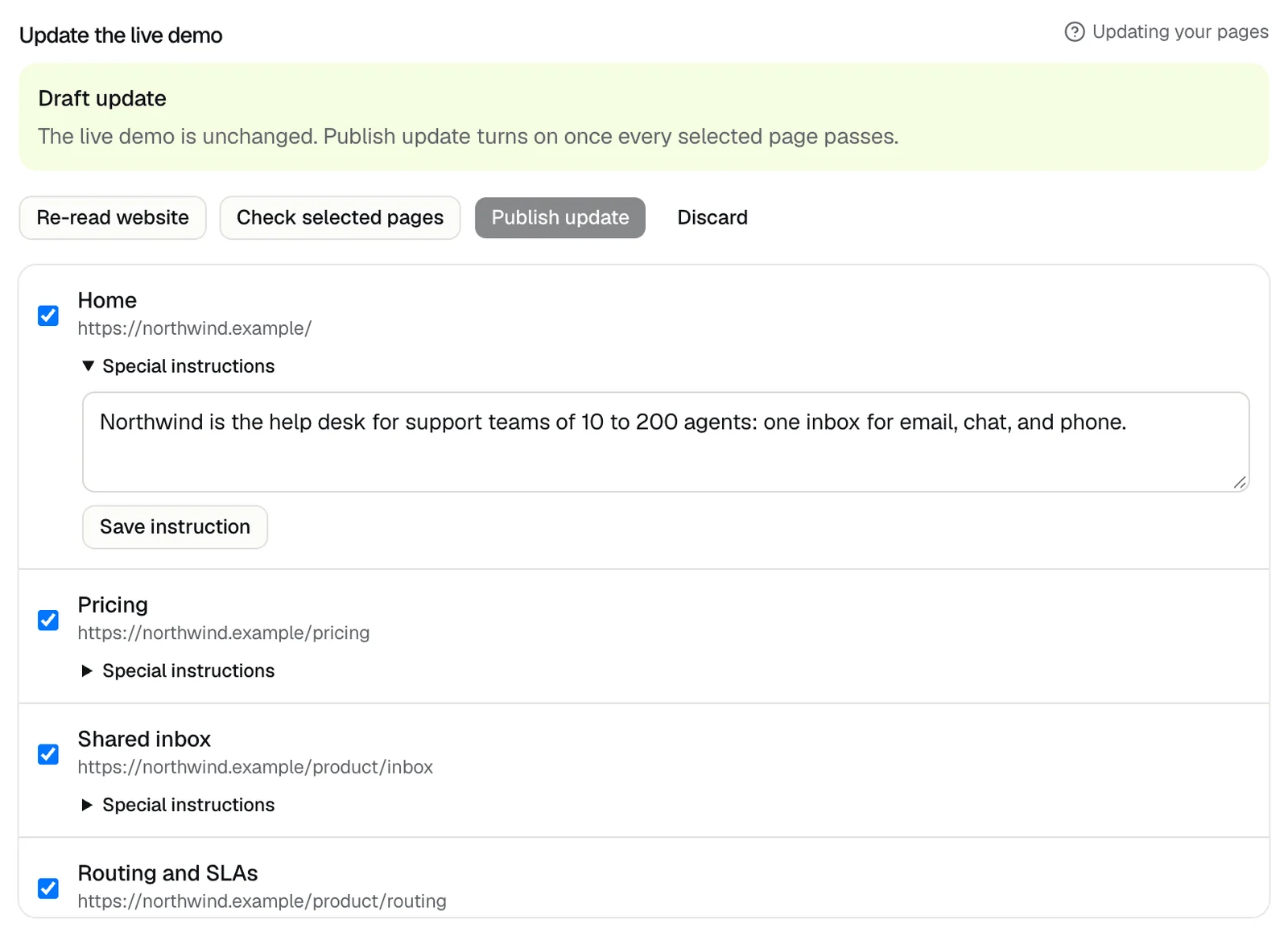
- 2Press Update live demo. A Draft update opens with every page DemoPage knows, each page of a group on its own row.
- 3Press Re-read website to pick up new or changed pages. New pages arrive unticked; see how DemoPage reads your site.
- 4Tick or untick pages. Under a ticked page, Special instructions lets you tell the guide what to say about it; see How do I tell the guide what to say about a page?
- 5Press Check selected pages. DemoPage loads each ticked page of your website the way a demo will, and a line under the buttons says how many passed. Publish update turns on once every selected page passes.
- 6Press Publish update, or Discard to throw the draft away.
Good to know
- Any change in the draft, a saved instruction included, clears the check, so press Check selected pages again before you publish.
- Keep at least one page of its own ticked, or the check stops with "Keep at least one standalone page."
- An update loads the pages of your website only. Signed-in pages aren't loaded again and don't hold up Publish update. To check them again, save them under Signed-in product pages; see How do I show my product's signed-in screens?
- Re-reading counts toward the 6 site reads a day. After that, the portal says "Your site was read several times today. Try again tomorrow."
- If your live demo changes while a draft is open, for example after the nightly page check or after you save signed-in pages, publishing says "The live demo changed after this update started. Start the update again." Press Discard and start a new update.
- A presentation isn't part of the draft. Changes under Presentation and approved pages save straight away; see adding a presentation.
- A page that fails the check stays out of demos; see Why was a page kept out of my demos?
Related questions
Didn't answer your question?
Talk to us with your demo link and the email you signed up with, or write to hello@demopage.io. We'll answer, and add it to the Help Center.