Short answer
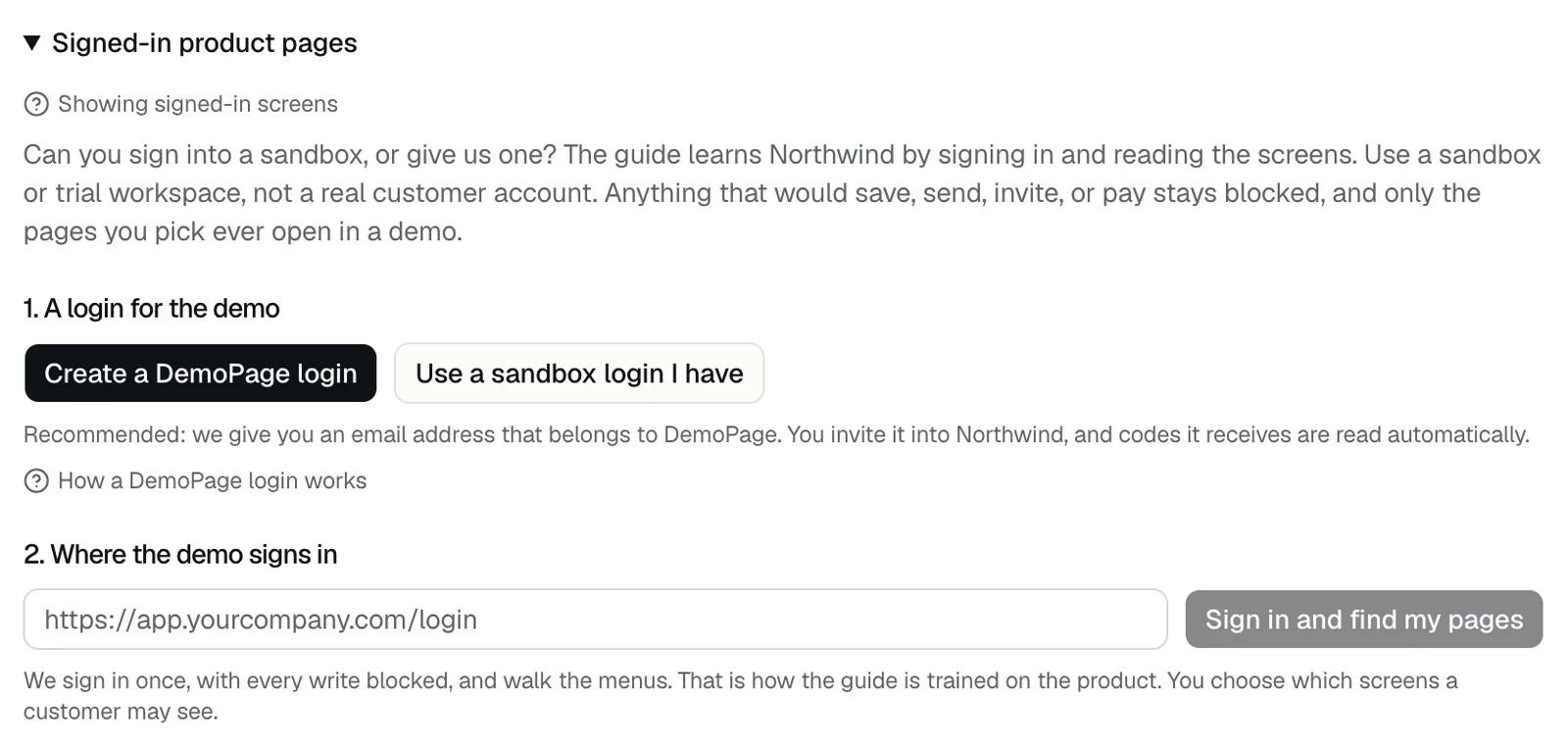
Give the demo a login for a sandbox or trial workspace, then let it sign in and find the pages a customer may see. Open Signed in in the setup steps, or after you go live, Demo settings, then Signed-in product pages: create a DemoPage login and invite it into your product, or save a sandbox login you already have. Then enter your sign-in page, press Sign in and find my pages, tick the pages to show, and save them.
Before you start
- You can add signed-in pages during setup or after you go live. Going live still needs at least one page of your website.
- Use a sandbox or trial workspace, not a real customer's account. The password stays on our server and is never shown in a demo; see Does the AI see my sandbox password?
Steps
- 1Open Signed in in the setup steps. Once you're live, it's under Demo settings, then Signed-in product pages.
- 2Under A login for the demo, press Create a DemoPage login and invite its address into your product (see What is a DemoPage login?), or press Use a sandbox login I have and enter its email and password.
- 3Under Where the demo signs in, enter your sign-in page, such as https://app.yourcompany.com/login. It has to be an https address on your domain or one of its subdomains.
- 4Press Sign in and find my pages. It stays greyed out until a login is saved. An isolated browser signs in once, then reads your menus and the pages behind them with every write blocked.
- 5Under Pages demos may open, tick the pages a customer may see, then press the Show N pages in demos button under the list. Pages it finds start unticked.
- 6DemoPage loads each picked page, signed in, the way a demo will, and keeps out any that don't load.
Limits and upkeep
- You can run Sign in and find my pages 4 times a day. After that, the portal says "You can map your app 4 times a day. Try again tomorrow."
- Running it again keeps the pages you picked before. New pages it finds start unticked.
- The nightly page check includes these pages while a login and a sign-in page are saved.
- A website update under Update the live demo doesn't load these pages again, so they don't hold it up. To check them again, press the Show N pages in demos button.
- A visitor who takes the screen can click through to other screens on your app's domain, beyond the pages you picked, so keep the sandbox free of anything private.
If something fails
See Sign in and find my pages didn't work, or the guide to finding your signed-in pages.
Related questions
Didn't answer your question?
Talk to us with your demo link and the email you signed up with, or write to hello@demopage.io. We'll answer, and add it to the Help Center.