Short answer
Your demo link turns on once you've confirmed your email and gone live with at least one page of your website. If you signed up with an email on another domain, it also waits until we've checked that you run the site. The Next card at the top of your portal, or the setup step that's open, says which step is left.
Find the step that's left
The title of the Next card, or of the setup step that's open, tells you where you are.
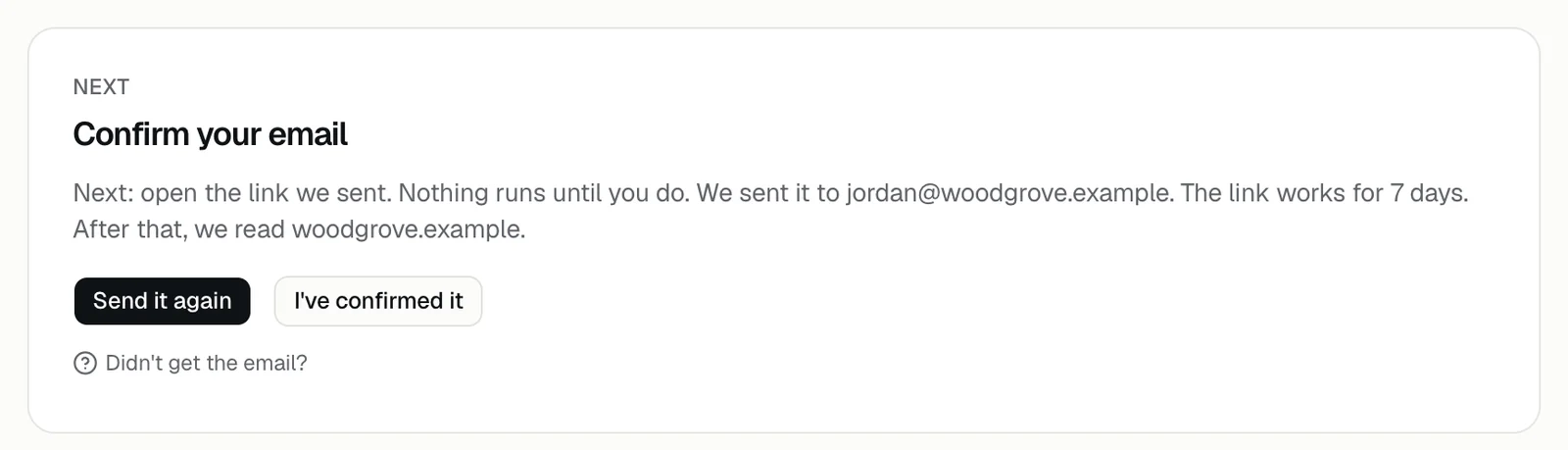
- Confirm your email: open the link in the email we sent, then press I've confirmed it. Nothing runs until you do. Send it again sends a new link. Each link works once, for 7 days, and only the newest one works. The confirmation email
- We're reading your site: the page updates by itself when the read is done. If it ends with No pages to show yet, press Read my site again. How your site is read
- Set what the guide can open: tick the pages the guide may open, then press the Go live with button, such as Go live with 3 pages. It stays greyed out until at least one page of your own site is ticked. A group of pages, like integrations, or a presentation can't go live on its own. Set what the guide can open
- Your link turns on when we approve your site, with a note that starts We're checking that you run: your sign-up email is on a different domain from your website, so we check that you run it first. Finish setting up meanwhile. We don't email you when we approve, so look at the Next card. Signed up with the wrong email
If going live shows a message
You see these when the rule above isn't met, for example when an AI tool goes live for you.
- Pick at least one page: no page of your own site is ticked. A list of pages, like integrations, doesn't count on its own.
- Keep at least one page of your site ticked: you added a presentation, and it goes live together with at least one page of your site, such as your home or pricing page. Add a presentation
- Your site is still being read: the first read isn't done yet. Ask again once the portal lists your pages.
Check from a visitor's side
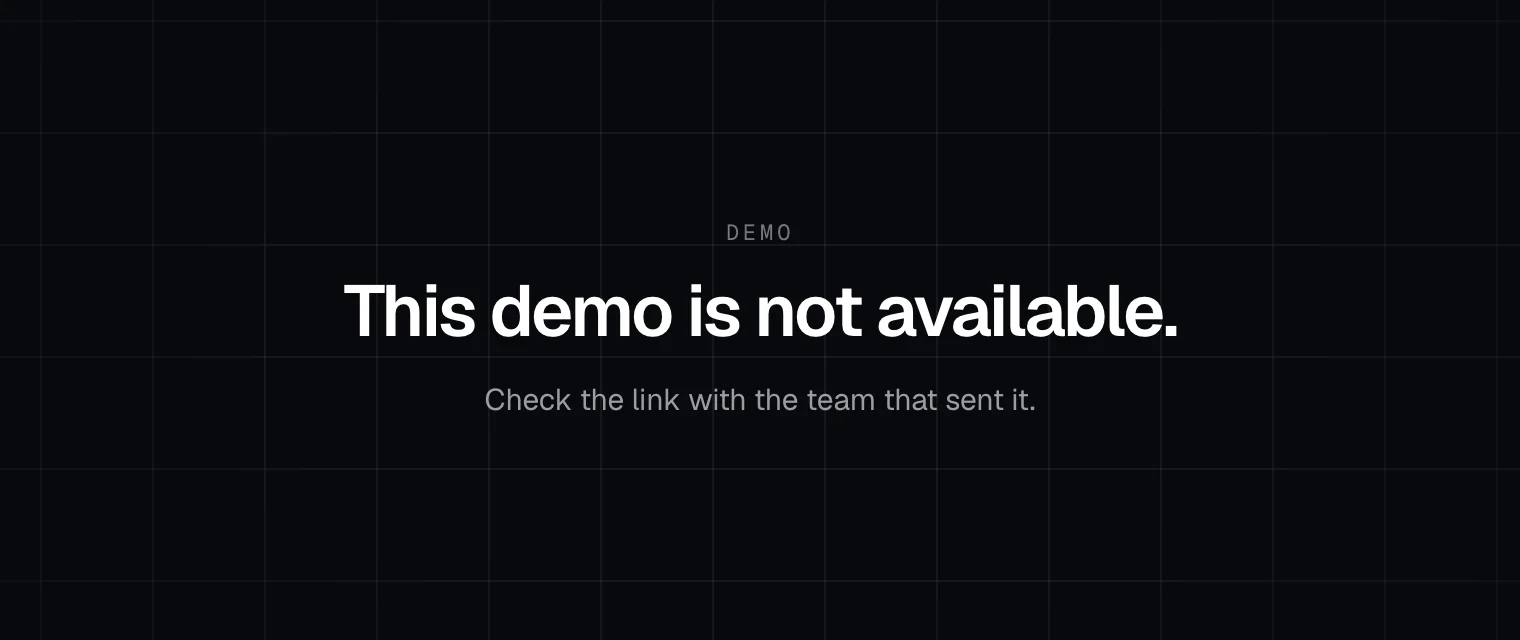
Open your demo link in a private window. Until it's on, the page says This demo is not available, and Check the link with the team that sent it. The button on your site opens an empty panel until then. Try your demo before you share it
Still stuck?
Find your way around the portal, or talk to us with your demo link and the email you signed up with.
Related questions
Didn't answer your question?
Talk to us with your demo link and the email you signed up with, or write to hello@demopage.io. We'll answer, and add it to the Help Center.