Short answer
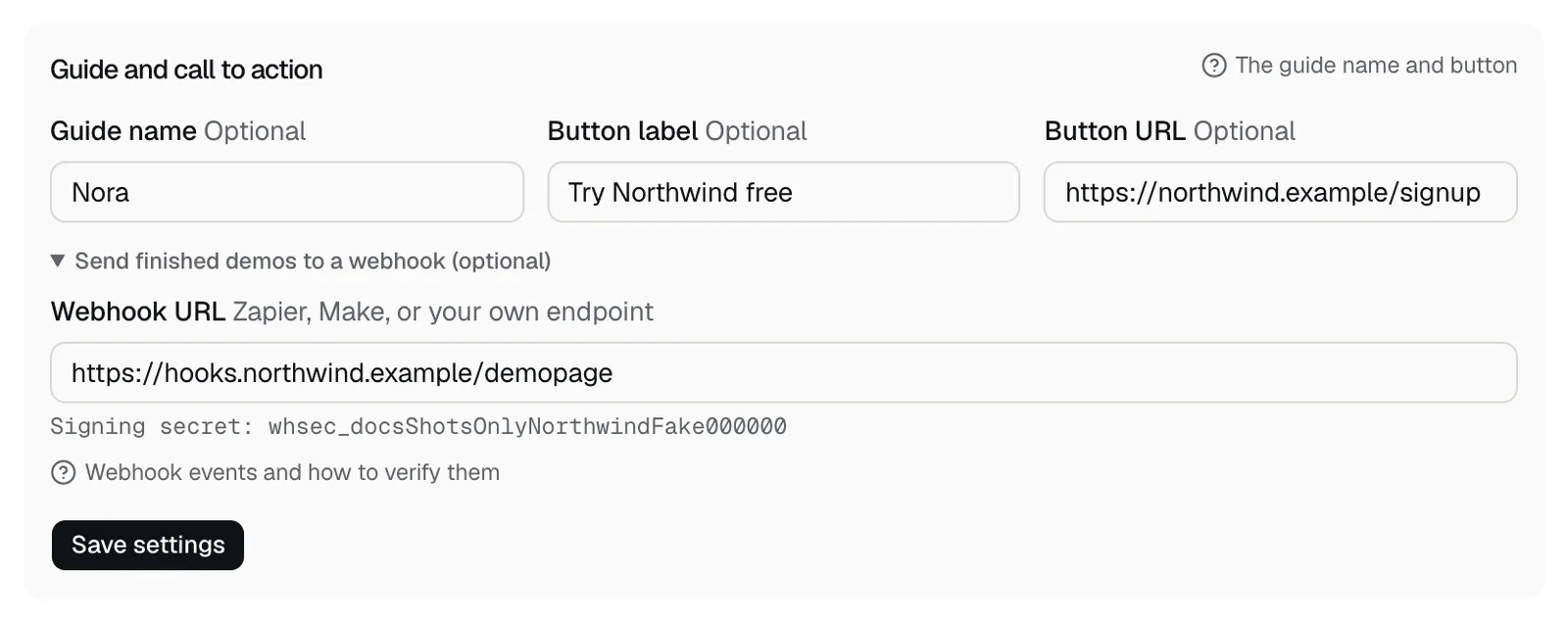
Webhooks are included from Starter. On the Demo settings tab, open Send finished demos to a webhook (optional) under Guide and call to action, and paste your https address under Webhook URL. After you press Save settings, DemoPage posts a signed JSON event when a lead is captured, when a live demo ends, and, on Growth and above, when a demo made for a CRM lead is ready. It works with Zapier, Make, or your own endpoint.
Set it up
- 1Open the Demo settings tab and find Guide and call to action.
- 2Open Send finished demos to a webhook (optional) and paste your address under Webhook URL.
- 3Press Save settings. Your Signing secret, starting with whsec_, then shows under the field.
Save settings also saves Guide name, Button label, and Button URL from the same form. If it says A call to action needs both a label and an https link, fill in both or clear both.
What the address needs
- A full https address. Otherwise Save says The webhook needs a full https address, or The webhook must use https.
- A public address. Private, local, and cloud metadata addresses get The webhook must be a public address.
- No username or password in it. An address with them gets Take the username and password out of the webhook address. DemoPage signs each request instead. Remove them, and check the signature on your side.
The events
Each event is JSON with event, its name, and sentAt, when it was sent. The name is also in the x-demopage-event header. Read event first, and ignore the ones you don't use.
- lead.captured: someone sent the demo form, or asked for pricing or a follow-up. It has lead, with email, account, reason (demo, pricing, or follow-up), and question in their words, plus the qualification card. demo is filled in when it happened in a live demo. One person can send more than one.
- demo.completed: a live demo ended, even if the visitor left early. It has demo, with the brief, the pages seen, what they built in the sandbox, the questions and answers, whether they drove, signals such as pricing or security, the card, the next step, the language, start and end times, and recapUrl, a recap link. lead has their email.
- demo.prepared: a demo for a CRM lead was made or couldn't be made. It has lead, the demo's status and note, the pages shown, the lead's link, whether it was emailed, and the card. See a demo before the first call.
Verify the signature
Each request has an x-demopage-signature header like t=1767225600,v1=5257a8…, where v1 is the hex HMAC-SHA256 of the timestamp, a dot, and the raw request body. The key is your whole Signing secret, whsec_ included. Compare in constant time, and reject requests whose timestamp is old.
import crypto from "node:crypto";

// rawBody is the request body exactly as received; header is the x-demopage-signature value.
export function verify(rawBody, header, secret, maxAgeSeconds = 300) {
  const parts = Object.fromEntries(header.split(",").map((part) => part.split("=")));
  const age = Math.abs(Date.now() / 1000 - Number(parts.t));
  if (!(age <= maxAgeSeconds)) return false;
  const expected = crypto.createHmac("sha256", secret).update(`${parts.t}.${rawBody}`).digest("hex");
  const given = Buffer.from(parts.v1 ?? "");
  return given.length === expected.length && crypto.timingSafeEqual(given, Buffer.from(expected));
}
Delivery and retries
- Each event is tried up to 3 times: right away, 2 seconds later, then 8 seconds after that. Each try waits up to 5 seconds for an answer.
- Any 2xx answer counts as delivered.
- It tries again only when your endpoint can't be reached, times out, or answers 429 or 5xx. Other answers end it, and redirects aren't followed.
- If the address resolves to a private network when it's sent, nothing is sent.
- Missed events aren't sent again later.
Test it, change it, or stop it
- Your portal can't send a test event or show past deliveries. To check it, open your demo link and send the form: a lead.captured event follows. To ask about recent deliveries, talk to us.
- Changing Webhook URL keeps the same Signing secret. For a new secret, talk to us.
- To stop, clear Webhook URL and press Save settings.
Related questions
Didn't answer your question?
Talk to us with your demo link and the email you signed up with, or write to hello@demopage.io. We'll answer, and add it to the Help Center.