Short answer
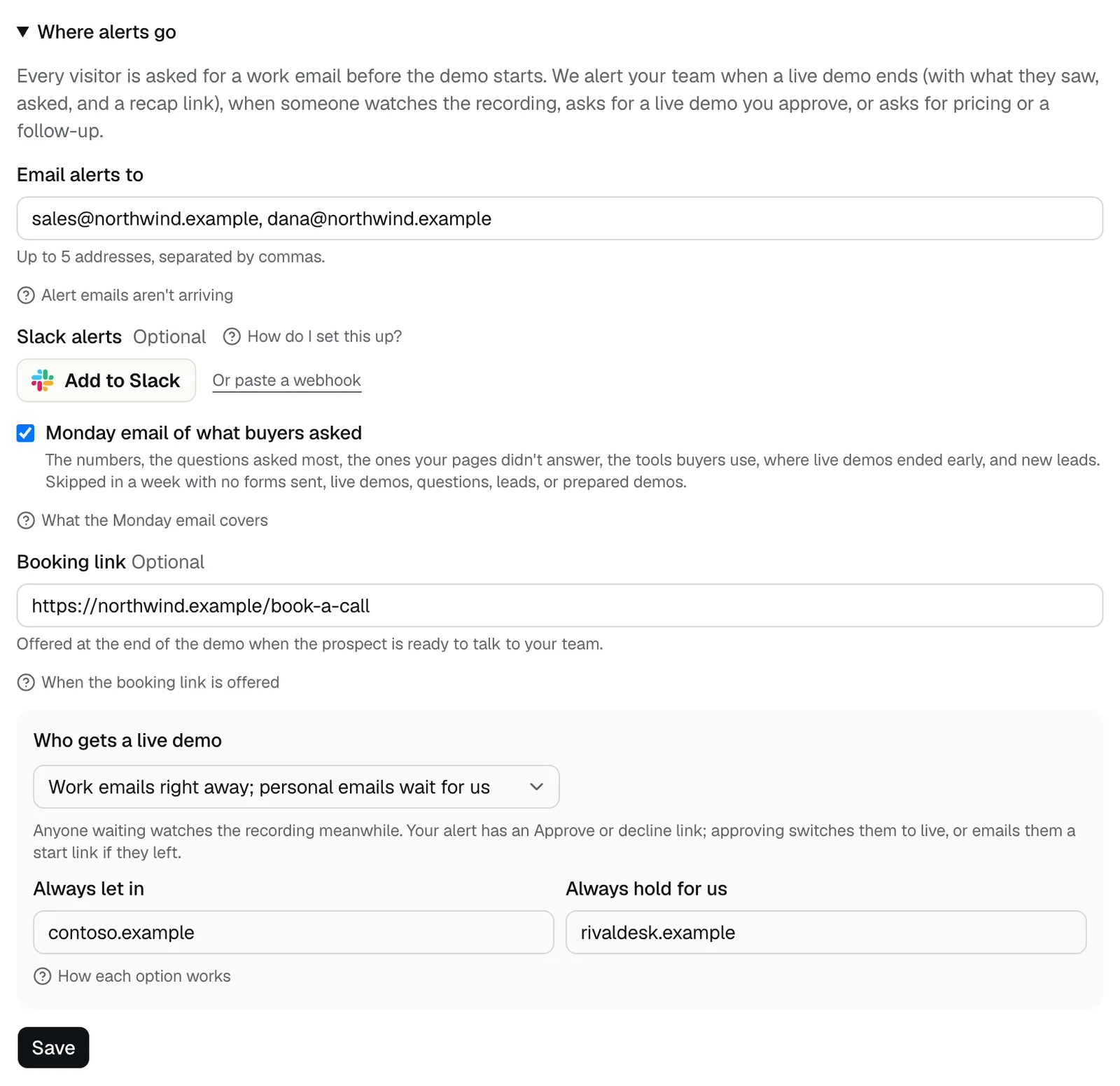
Every visitor is asked for a work email before the demo starts. DemoPage saves it as a lead and alerts your team by email and, if you connect it on Starter and above, in Slack. You pick the inboxes and the channel on the Leads tab, under Where alerts go, and your newest leads are listed there under Latest leads.
What sends an alert
Alerts go to every address under Email alerts to and to your Slack channel. Each Monday, the same inboxes and channel also get a summary of the week: see the Monday email.
- Someone starts watching your recorded demo.
- A live demo ends, even if the visitor left early. The alert has what they saw and asked, and, on Growth and above, a recap link and their qualification card.
- Someone asks for pricing or a follow-up.
- Someone asks for a live demo that waits for your approval. The alert has a link to approve or decline it: see approving a request.
- A demo made for a lead from your CRM is ready or couldn't be made, and again when that lead first opens it: see a demo before the first call.
- The nightly check keeps pages out of demos because they no longer load as expected: see why a page was kept out.
Watching, pricing, and follow-up alerts come at most once a day for the same person. Every live demo that ends, every new live demo request, and every demo made for a CRM lead sends its own alert.
Set it up
- 1Open the Leads tab and open Where alerts go. The same settings are on the Demo settings tab, under Alerts, booking link, and who gets in.
- 2Under Email alerts to, enter up to 5 addresses, separated by commas. Your sign-up email is there to start.
- 3Under Slack alerts, press Add to Slack, or paste an incoming webhook. See Slack alerts.
- 4If you like, add a booking link and choose who gets a live demo.
- 5Press Save. When it worked, the form says Saved.
- 6Before you go live, the same form is under Leads in the setup steps. What you save there applies when you go live, and Slack connects after you go live.
What each field accepts
- Email alerts to: up to 5 addresses, separated by commas or spaces. If Save says one of them is not an email address, fix or remove it. If it says Send alerts to at most 5 addresses, remove some.
- Slack alerts: a Slack incoming webhook, which starts with https://hooks.slack.com/services/. Add to Slack fills this in for you.
- Booking link: a full https address, or nothing. Any other address gets The call to action must be an https link.
- Always let in and Always hold for us: up to 10 domains each, separated by commas or spaces. Use the domain in people's email addresses, such as contoso.com, not www.contoso.com. A full address like https://contoso.com/pricing is saved as contoso.com.
Where you see your leads
Your 10 newest leads from the last 30 days are on the Leads tab under Latest leads, even when an alert didn't arrive. Each has Reply, and Recap after a live demo. See seeing and exporting your leads and following up with a lead.
If alert emails aren't arriving, see missing alert emails. To stop alerts for a while, see pausing lead alerts.
New to the portal? See what's in your portal.
Teammates can't sign in to your portal, so add their addresses under Email alerts to. See can my teammates sign in?
Your CRM and other tools
To record a walkthrough for each new lead your CRM sends, see a demo before the first call. To send every lead and finished demo to Zapier, Make, or your own endpoint, see sending leads to a webhook.
Related questions
Didn't answer your question?
Talk to us with your demo link and the email you signed up with, or write to hello@demopage.io. We'll answer, and add it to the Help Center.