Short answer
Included from Growth. Turn on Demo before the first call on the Leads tab, then have your CRM or a Zap send each new lead's email and goal to your Send leads to address. DemoPage records a walkthrough made for that lead and sends it to your team by email and Slack. You can also prepare one by hand, and the lead can get theirs by email.
Turn it on
- 1Open the Leads tab, find Demo before the first call, and press Turn on.
- 2Copy your intake key right away. It's shown only once.
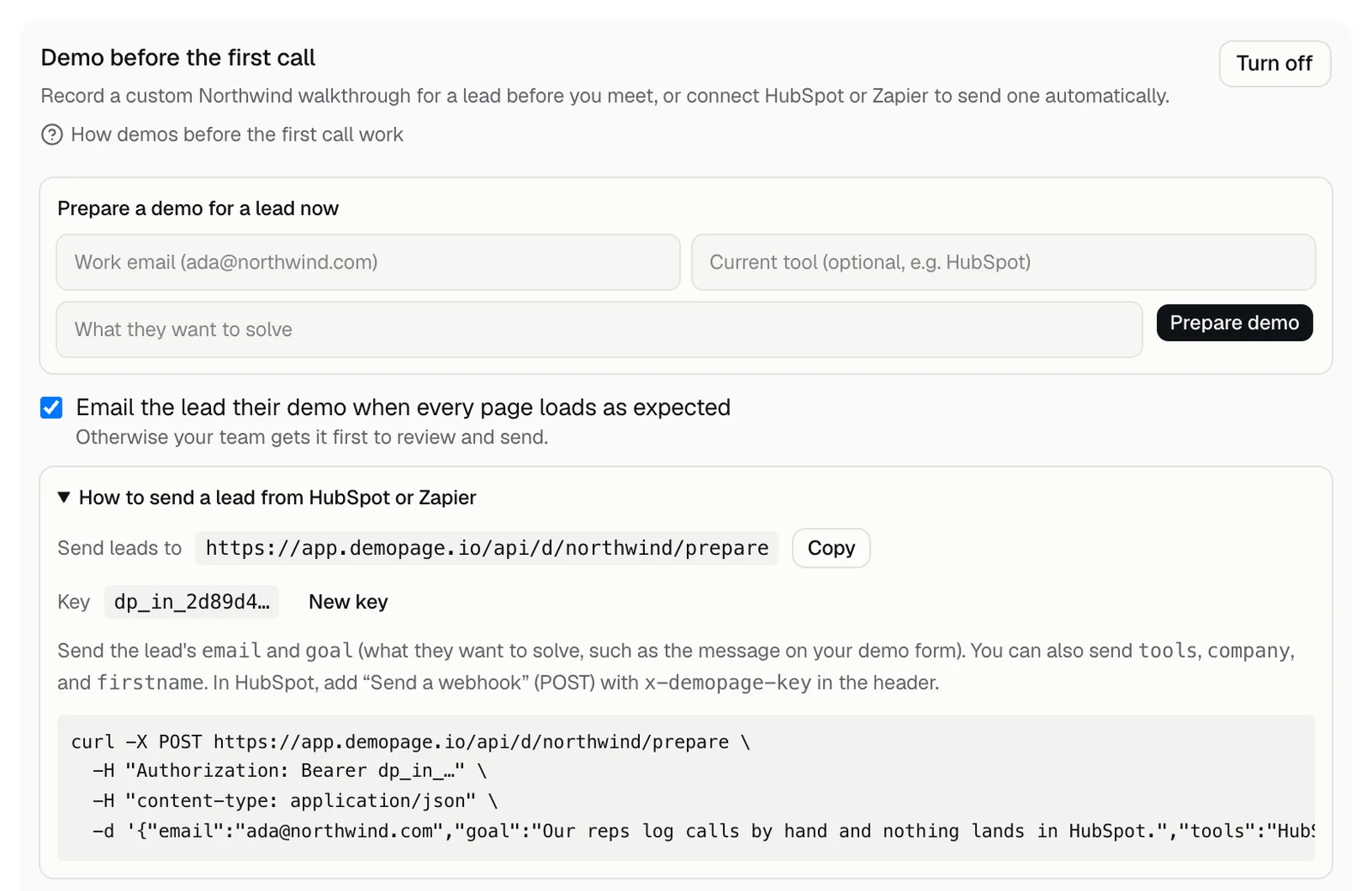
- 3Open How to send a lead from HubSpot or Zapier, and press Copy next to Send leads to.
Lost the key? Press New key, and the old key stops working. Turning the feature off and on again also makes a new key. Turn off stops the key, and demos still waiting aren't made.
What to send
Any tool that can send a POST request with JSON works, such as a HubSpot workflow, a Zap, or a Salesforce flow.
- email: the lead's work email. Required.
- goal: what they want to solve, at least 12 characters. Required. A field named message, notes, or description works too, so your demo form's message fits.
- tools, company, and firstname, if you have them. With firstname, the email to the lead greets them by name.
- Your key, in an Authorization header as Bearer and the key, or in a header named x-demopage-key.
curl -X POST https://app.demopage.io/api/d/your-link/prepare \
  -H "Authorization: Bearer YOUR_INTAKE_KEY" \
  -H "content-type: application/json" \
  -d '{"email":"ada@contoso.com","goal":"Our reps log calls by hand and nothing lands in HubSpot.","tools":"HubSpot","company":"Contoso","firstname":"Ada"}'
A new lead gets 202 back. The same email again within 7 days gets 200 and the same demo. A missing or wrong key gets 401.
From a HubSpot workflow
- 1In a contact workflow, add the action Send a webhook, with the method POST.
- 2Paste your Send leads to address as the webhook URL.
- 3For authentication, add your key as an API key named x-demopage-key, sent in the request header.
HubSpot sends the contact's properties as they are, and DemoPage reads email, message, company, and firstname from them, so there's nothing to map. The contact needs a message of at least 12 characters, such as the one from your demo form.
From Zapier
- 1Add the action Webhooks by Zapier and choose POST.
- 2Paste your Send leads to address as the URL, and send the data as JSON.
- 3Map the lead's email and goal, and any of tools, company, and firstname.
- 4Add a header named Authorization with the value Bearer, a space, and your key.
Prepare one by hand
- 1Under Demo before the first call, find Prepare a demo for a lead now.
- 2Enter their work email and what they want to solve. Their current tool is optional.
- 3Press Prepare demo. The lead shows in the list below as Waiting, from Portal.
What happens next
- Website visitors come first. A demo for a lead waits for a free demo browser, and uses at most half of today's live demos.
- Your team gets the demo and the lead's qualification card by email and Slack, with the lead's link and a preview link. Opening the preview doesn't count as the lead.
- With Email the lead their demo when every page loads as expected ticked, the lead gets it by email when every page loaded and at least 2 pages show. Otherwise your team gets it first, to watch and send. See what the lead's email says.
- You get another alert the first time the lead opens their link.
- A demo that finishes with at least 2 pages uses one live demo; one that isn't made uses none. See what counts as a live demo.
- With a webhook set, a demo.prepared event goes to it too. See sending to a webhook.
The list on the Leads tab
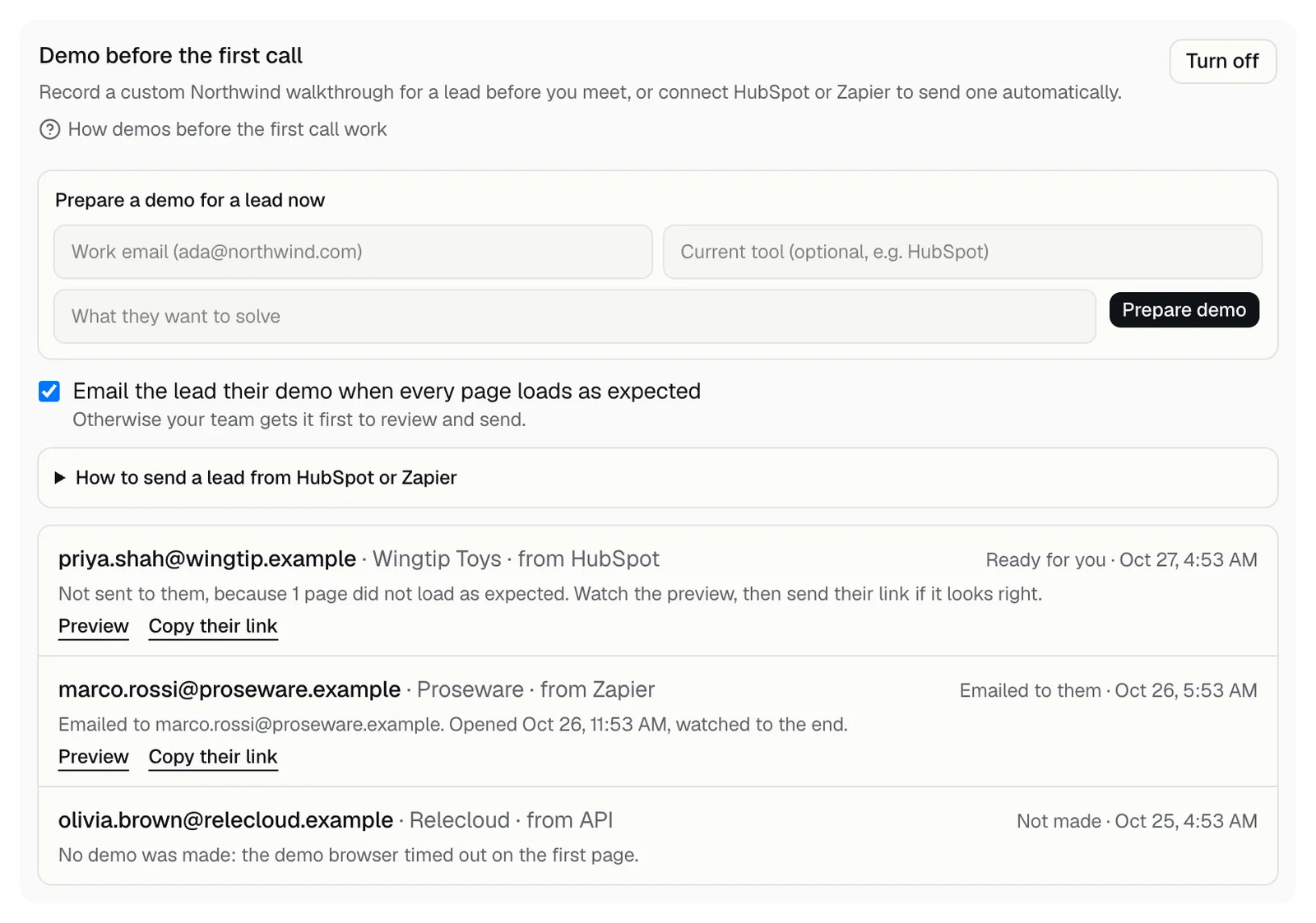
Under Demo before the first call, your 8 newest show with where each came from and a note. After the lead opens their link, the note says when, and how much they watched.
- Waiting: in line for a free demo browser, or for a share of today's live demos.
- Recording: the walkthrough is being recorded.
- Emailed to them: the lead has their link.
- Ready for you: press Preview to watch it, then Copy their link to send it yourself. The note says why it wasn't emailed.
- Not made: the note says why. It doesn't use a live demo.
Limits
- Up to 25 in any 24 hours. Past that, your CRM gets an error that starts This link already prepared 25 demos in the last day, and no demo is made for that lead, so send it again the next day.
- The same email within 7 days gets the same demo, unless the first one couldn't be made.
- A demo still waiting after 6 hours, for a browser or for today's live demos, isn't made, and your team is told why.
- These limits count demos you prepare by hand too.
Related questions
Didn't answer your question?
Talk to us with your demo link and the email you signed up with, or write to hello@demopage.io. We'll answer, and add it to the Help Center.