Short answer
Open Demo settings, then Signed-in product pages, and read the message under Where the demo signs in. Most failures mean the login can't sign in on its own: the sign-in page has to be on your product's domain, the login has to be a user in your product, and codes sent by text message can't be read. You can try 4 times a day.
What the message means
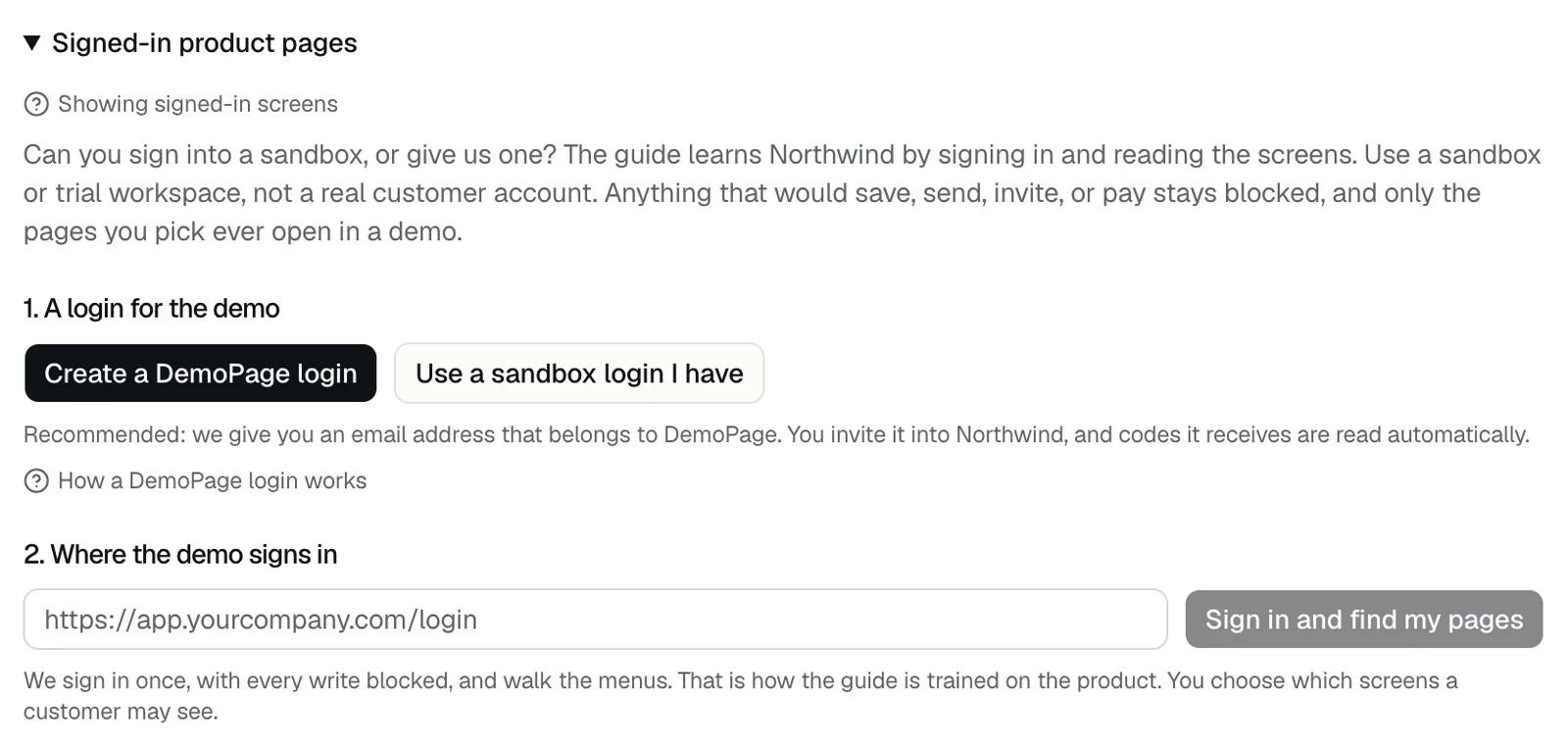
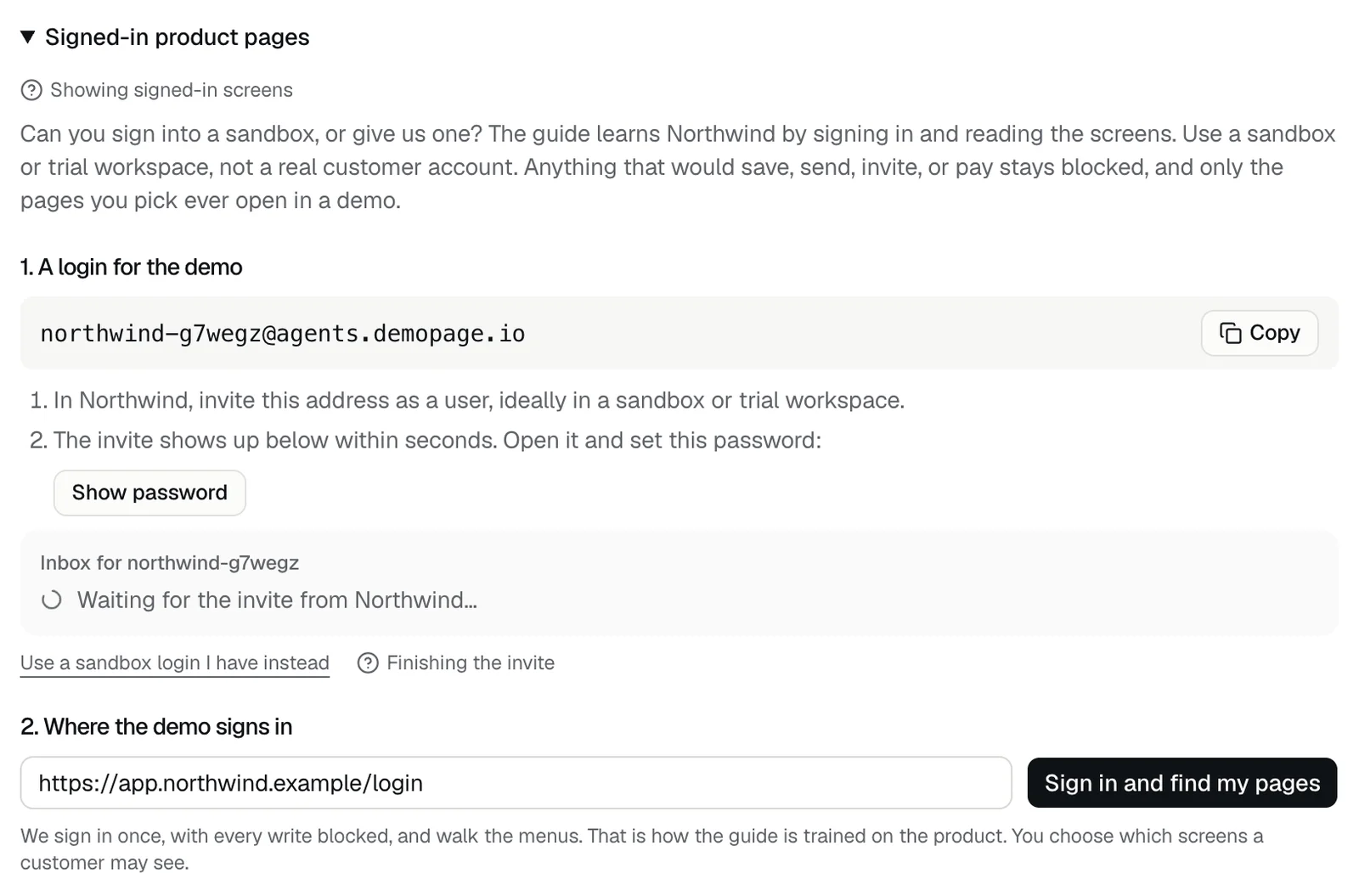
- Add a login first, then we can sign in: under A login for the demo, press Create a DemoPage login, or Use a sandbox login I have.
- We're already signing in and reading your app: a run is still going. Wait for it to finish.
- The sign-in page must be an https address on your domain or one of its subdomains: the address you entered is on another domain, or doesn't start with https. Copy it from your browser's address bar on the sign-in page.
- You can map your app 4 times a day. Try again tomorrow: each try comes back 24 hours after you used it.
- No isolated browser is free right now: every demo browser is busy. Try again later.
- Sign-in did not finish, followed by the address the browser stayed on: the login didn't get past the sign-in page. Check that the login is a user in your product and that its password works, then see the sign-ins that can't finish, below.
- Signed in, but found no navigation links or menus on the allowed domains: the login got in, but its menus lead to other domains, or the account sees an empty workspace. Use a login that sees your product's usual menus. If your app runs on another domain, talk to us.
Sign-ins that can't finish
- Single sign-on through Google, Microsoft, Okta, or another provider on a domain that isn't your product's. The demo browser opens only your product's domains.
- Codes sent by text message or shown in an authenticator app. Turn two-step sign-in off for the sandbox login, if your product allows it.
- Codes and links sent by email work with a DemoPage login, because DemoPage reads its inbox while it signs in. A sandbox login of your own can't receive them for the demo. How a DemoPage login works
Before you try again
- 1Open your product's sign-in page and copy its address exactly into Where the demo signs in.
- 2Sign in by hand, in a private window, with the same login. If you can't, the demo can't either.
- 3With a DemoPage login, invite its address as a user in your product, open the invite when it appears in the inbox below it, and set the password Show password reveals.
- 4Press Sign in and find my pages.
- 5Under Pages demos may open, tick the pages a demo may show, then press the Show button, such as Show 3 pages in demos.
Limits
- Sign in and find my pages runs 4 times in any 24 hours.
- We load each page you pick, signed in, the way a demo will, and keep out any that don't load. Pages kept out of demos
- Demos sign in once, with every write blocked. What the AI does with your login
Related questions
Didn't answer your question?
Talk to us with your demo link and the email you signed up with, or write to hello@demopage.io. We'll answer, and add it to the Help Center.