Short answer
Your portal has five tabs: Home for the next thing to do and your demo link, Leads for leads and alerts, Results for what visitors did and asked, Demo settings for how the demo looks and sounds, and Plan for your usage. The header has Help center, Setup guide, and Sign out.
Home
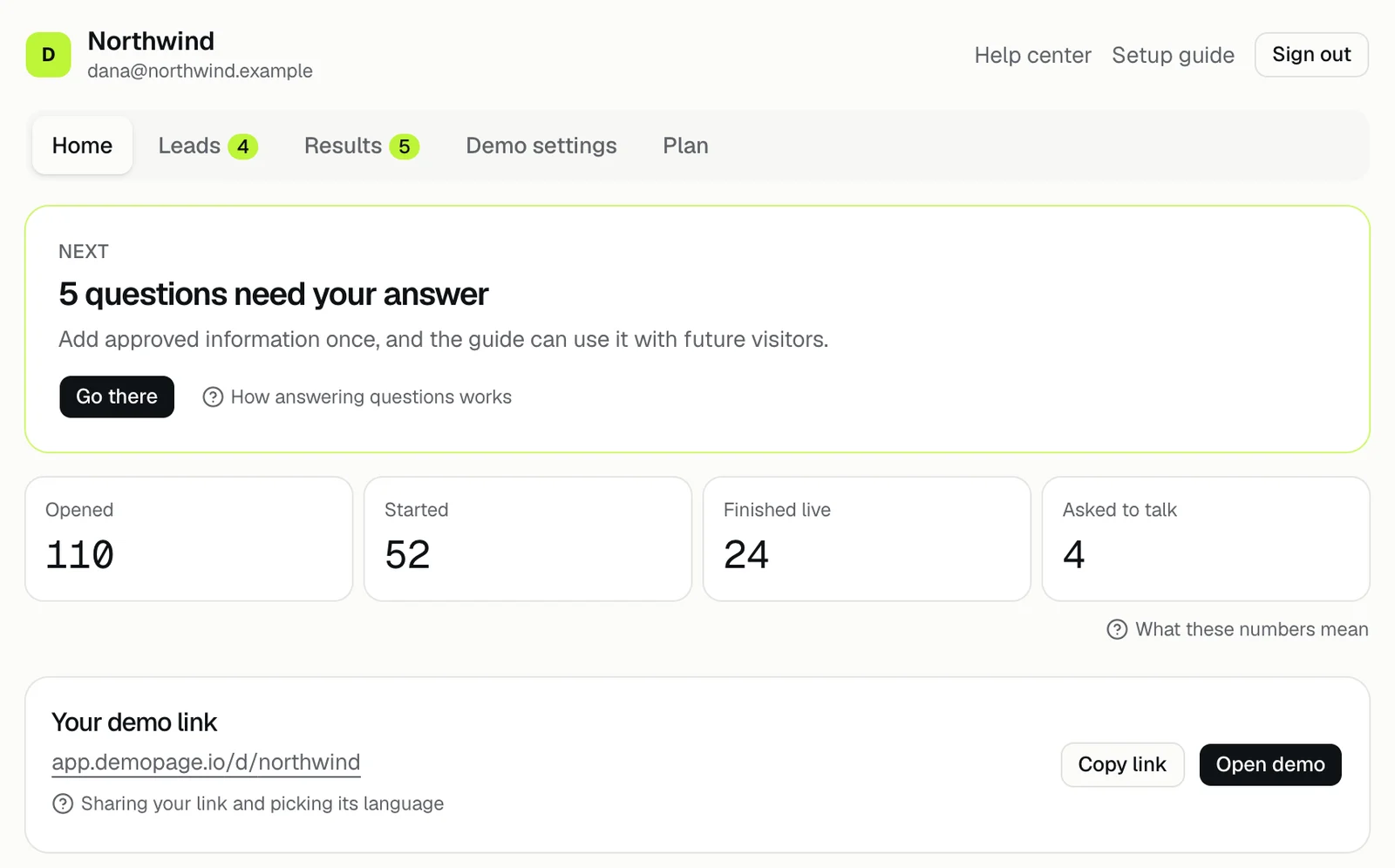
The Next card shows the one thing to do now, with a Go there button when it's on another tab. Below it are the counts Opened, Started, Finished live, and Asked to talk; press one to open Results. Your demo link has Copy link and Open demo. Sharing your link
What each of the four numbers counts: the numbers on Home.
Leads
A number on the Leads tab shows how many leads asked about pricing or a follow-up.
When a lead asks to talk: following up with a lead.
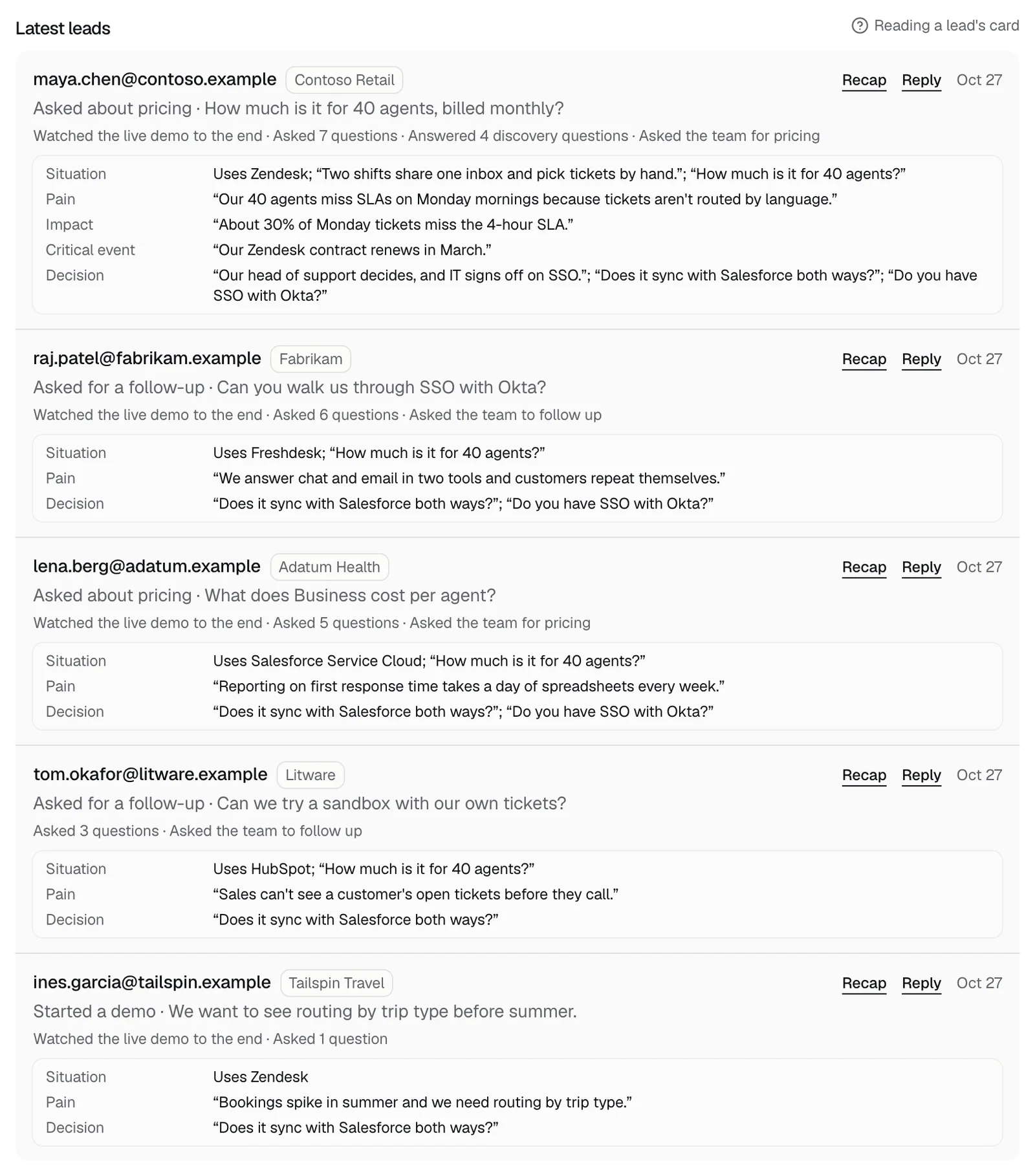
- Latest leads: each visitor's work email and whether they asked about pricing, asked for a follow-up, or started a demo, with Recap and Reply. Reading a lead's card
- Live demo requests: live demos waiting for your approval. It appears when you approve live demos first, or have requests. Approving requests
- Demo before the first call: record a walkthrough for a lead before you meet. How it works
- Where alerts go: who gets alerts by email and Slack, the Monday email, your booking link, and who gets a live demo. Where leads go
Results
When the guide couldn't answer something from your pages, Questions to answer lists it, and a number on the Results tab shows how many are waiting. Answering questions
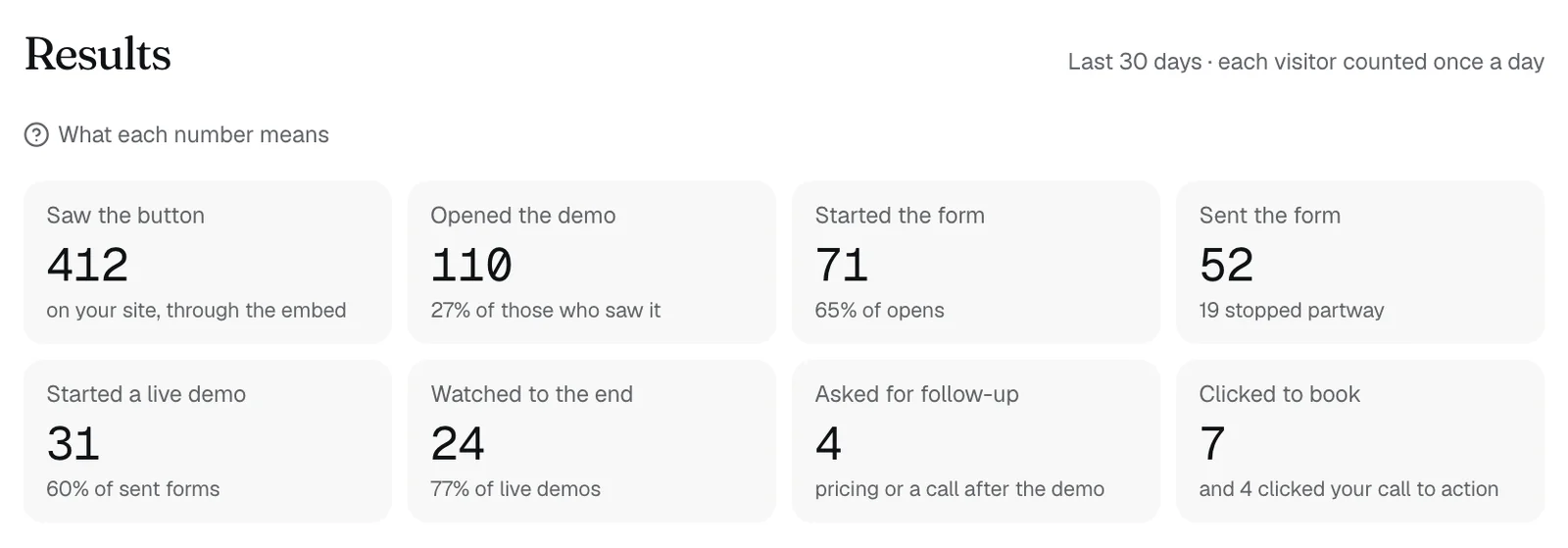
Below are the numbers from Saw the button to Clicked to book, What prospects asked most, Where the demo was opened, Pages kept out of demos, and Notes from leads. Before the first visitor, the tab says Results appear after the first visitor. What each number means
Demo settings
- Language and voice: the language the guide starts in, with Hear the guide and Open demo. Trying your demo
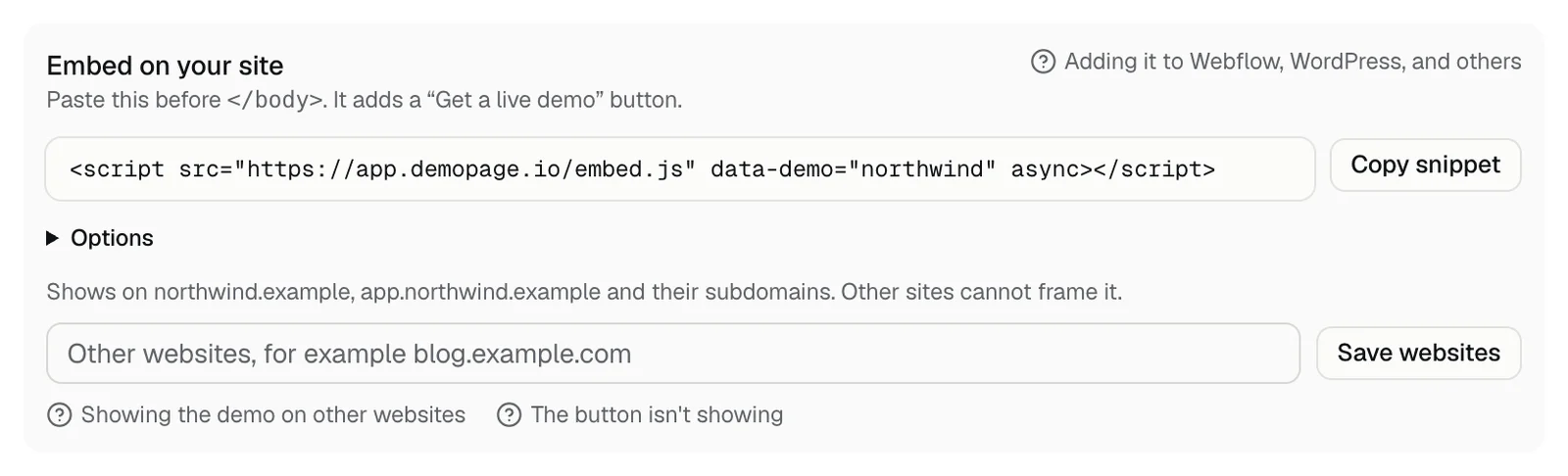
- Embed on your site: the snippet, its Options, and other websites that may show the demo. Adding the button
- Guide and call to action: Guide name, Button label, Button URL, and an optional webhook. The guide name and button
- Update the live demo: re-read your site, change pages, or give a page special instructions in a private draft. Updating your pages Page instructions
- Alerts, booking link, and who gets in: the same settings as Where alerts go.
- Dub the recorded demo into other languages. Dubbing the recording
- Presentation and approved pages, Signed-in product pages, and Build from code. Signed-in screens
Plan
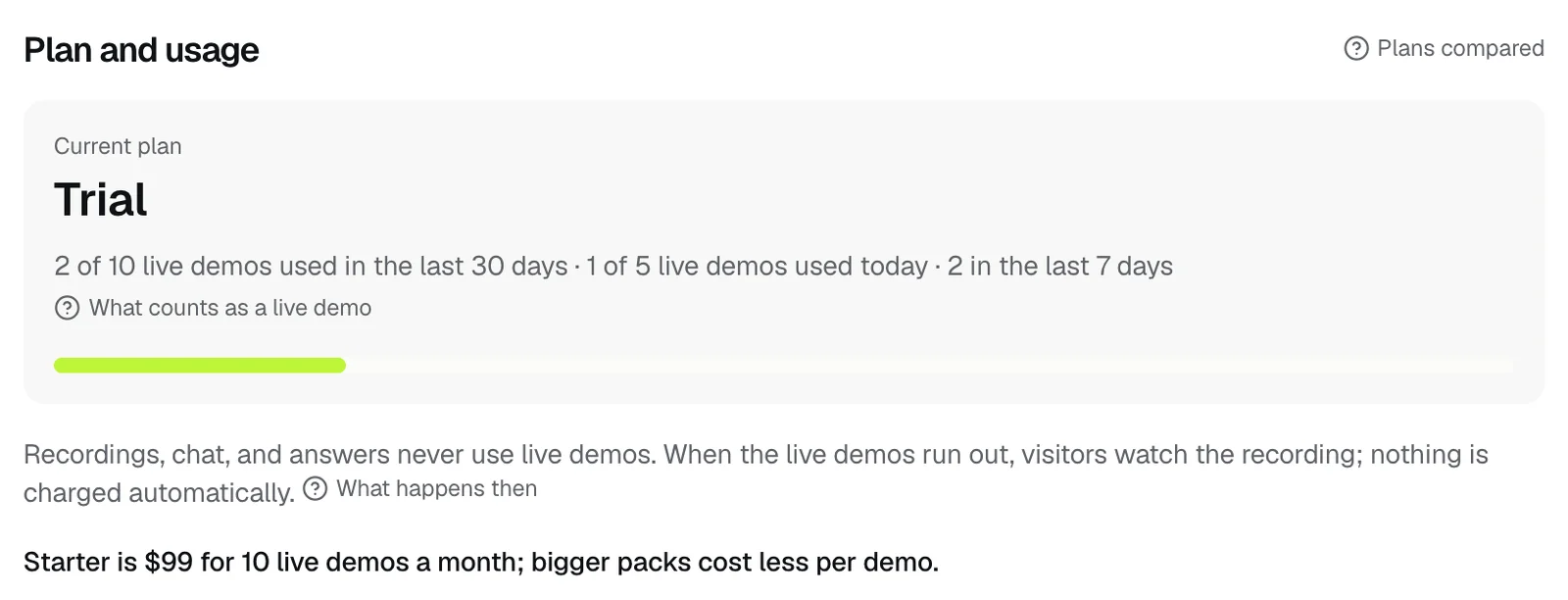
Plan and usage shows your Current plan and the live demos used in the last 30 days, today, and in the last 7 days. Below it are a box for an early-adopter code and Compare plans. On a paid plan you also see Need more live demos this month?, Change plan, and Cancel plan. Plans compared
When you're close to a limit, a note with See plan appears under the tabs. When live demos are used up
The header
Your company name and sign-in email are at the top left. Help center opens these articles in a new tab, Setup guide opens the step-by-step guide, and Sign out signs you out.
Each section has a small link to the article about it, and the bottom of each tab has a box to search the Help Center.
How long a sign-in lasts, and signing out everywhere: signing out.
Daily and hourly limits
Each limit counts back from now, over the last hour or the last 24 hours, rather than resetting at a set time.
- Reading your site: 6 times in 24 hours, including Re-read website in a draft update. How reading works
- Sign in and find my pages, which maps your signed-in product: 4 times a day.
- Show password, for a saved sandbox login: 20 times a day.
- Hear the guide: 30 times an hour.
- Send a test, in Slack alerts: 6 times an hour.
- Create dubbed recording: 3 dubbing jobs a day.
- Demo before the first call: 25 demos a day for your link.
- Early-adopter codes: 8 tries an hour.
- Signing in: after 10 wrong tries from one network address in 15 minutes, the sign-in page says Too many tries. Wait 15 minutes.
Related questions
Didn't answer your question?
Talk to us with your demo link and the email you signed up with, or write to hello@demopage.io. We'll answer, and add it to the Help Center.