Short answer
After you confirm your email, DemoPage reads your home page, up to 7 more pages from your sitemap, and groups of similar pages, like your integrations. It then lists the pages the demo can show and cite, and you choose which to keep. If it finds none, the portal says No pages to show yet and shows notes on what it tried.
What it reads
- Your home page, and up to 7 more pages from your sitemap. Docs, pricing, API, feature, integration, and settings pages come first; blog, news, and careers pages come last.
- Groups of similar pages, such as your integrations, as one row you keep or drop together.
- Only https pages on your website's domain and its subdomains.
- Pages in one language. Translated copies, like /de/pricing next to /pricing, are left out.
- Nothing behind a login. For signed-in screens, give the demo a sandbox login under Signed in in the setup steps. Show your product signed in
Reading a different website
- 1Press Site in the setup steps.
- 2Under Product domain to demo, enter the website of the product you want to show, such as https://yourproduct.com. Change Product name too if visitors should see another name.
- 3Press Switch and read this website. Pages from the old website are dropped, and the new read counts toward your reads for the day.
- 4If your sign-up email isn't on the new website's domain, the portal says so, and after you go live we check that you run it before your link turns on. Why your demo isn't live yet
- 5Once your demo is live, its website and name stay as they are. Talk to us to move a live demo to another website.
Your sitemap
DemoPage finds your sitemap through a Sitemap line in robots.txt, or at /sitemap.xml. Without one, it reads the home page and the groups of pages it links to, and nothing else. Publish a sitemap, then press Read my site again.
If it finds no pages
- 1The Next card says No pages to show yet. Press Site in the setup steps to see We could not find pages to show on yoursite.com, with notes under it.
- 2Fix what the notes describe, then press Read my site again.
- 3Going live needs at least one page of your site. A presentation goes live alongside it, not instead of it, and a sandbox login adds signed-in screens but doesn't replace your website's pages. Adding a presentation
- 4If no page can be read, talk to us.
What the notes mean
- Skipped yoursite.com/page (HTTP 404): the page doesn't exist. Fix the link, or take it out of your sitemap.
- Skipped yoursite.com/page (HTTP 403): your site refused the request, often through bot protection. Allow the user agent DemoPage/0.1, then read the site again.
- Host … is outside the environment allowlist: the page redirected to another domain, which DemoPage doesn't read.
- Only https pages are read: the page, or a page it redirected to, uses http.
- Too many redirects: the page redirects in a loop.
- … is not a public address, or … resolves to a private address: the site points to a private network. DemoPage reads public sites only.
- Left out 12 translated pages, so the demo stays in one language: nothing to fix.
- No cited surfaces yet: no page could be read. The note mentions a docs URL, but the portal has no field for one, so publish a sitemap instead.
How often you can read it
Your site can be read 6 times in 24 hours. The first read, after you confirm your email, uses one of those, and so does each press of Read my site again or Re-read website. Past the limit, the portal says Your site was read several times today. Try again tomorrow. While a read is going, it says Already reading your site.
Reading it again after you go live
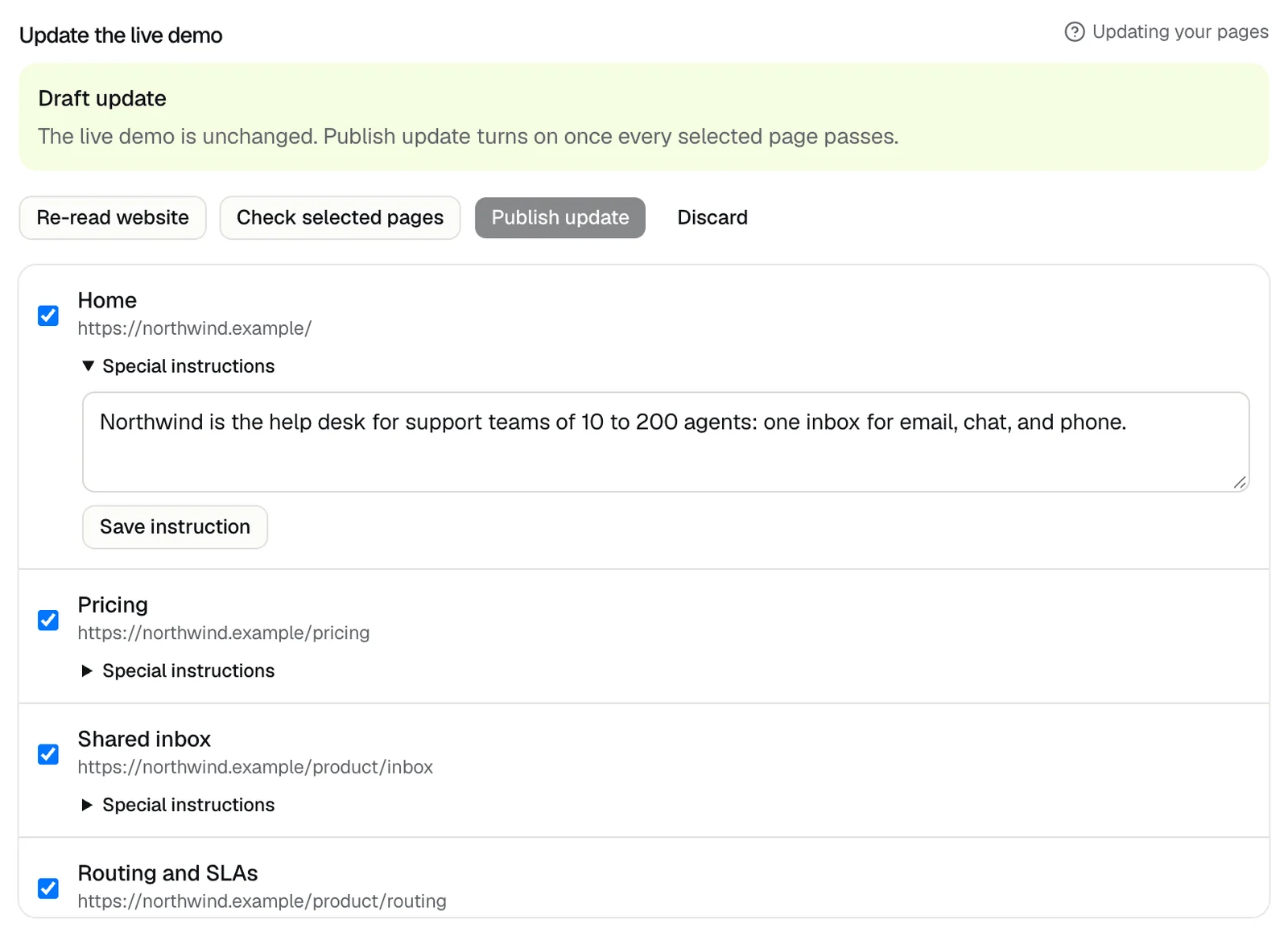
- 1Open Demo settings, find Update the live demo, and press Update live demo. That makes a private draft; your live demo doesn't change.
- 2Press Re-read website, then tick the pages to keep. The same notes appear under Read notes.
- 3Press Check selected pages. Publish update turns on once every selected page passes. Why a page fails
- 4Press Publish update, or Discard to drop the draft. Updating your pages
Related questions
Didn't answer your question?
Talk to us with your demo link and the email you signed up with, or write to hello@demopage.io. We'll answer, and add it to the Help Center.